TTDPatch is a program that modifies the way Transport Tycoon Deluxe (TTD) works. It offers many, many improvements in gameplay and offers a different way of experiencing TTD. Among the more popular options are:
None of the above is compulsory, everything can be customized. You only play with the options that you like, and leave the rest turned off. Every one has different preferences, and this program tries to accomodate that as much as possible.
Just keep on reading, and you'll find out that you really want to try this program. And the best: it's totally free! And that's because I'm just a TTD nut who can't get enough, and I've been so annoyed with the program at times that I just decided to fix it myself. I think I've been successful, but see for yourself.
This program and the accompanying documentation are Copyright
© 1999-2003 by Josef Drexler.
TTDPatch is distributed under the terms of the GNU general public license (GPL).
For more information please read the GNU GPL page. A copy of the license should have come with the program in the file
COPYING, if not please read the license.
In particular, the standard warranty disclaimer applies:
BECAUSE THE PROGRAM IS SUPPLIED FREE OF CHARGE, THERE IS NO WARRANTY FOR THE PROGRAM, TO THE EXTENT PERMITTED BY APPLICABLE LAW. EXCEPT WHEN OTHERWISE STATED IN WRITING THE COPYRIGHT HOLDERS AND/OR OTHER PARTIES PROVIDE THE PROGRAM "AS IS" WITHOUT WARRANTY OF ANY KIND, EITHER EXPRESSED OR IMPLIED, INCLUDING, BUT NOT LIMITED TO, THE IMPLIED WARRANTIES OF MERCHANTABILITY AND FITNESS FOR A PARTICULAR PURPOSE.
IN NO EVENT UNLESS REQUIRED BY APPLICABLE LAW OR AGREED TO IN WRITING WILL ANY COPYRIGHT HOLDER, OR ANY OTHER PARTY WHO MAY MODIFY AND/OR REDISTRIBUTE THE PROGRAM AS PERMITTED ABOVE, BE LIABLE TO YOU FOR DAMAGES, INCLUDING ANY GENERAL, SPECIAL, INCIDENTAL OR CONSEQUENTIAL DAMAGES ARISING OUT OF THE USE OR INABILITY TO USE THE PROGRAM (INCLUDING BUT NOT LIMITED TO LOSS OF DATA OR DATA BEING RENDERED INACCURATE OR LOSSES SUSTAINED BY YOU OR THIRD PARTIES OR A FAILURE OF THE PROGRAM TO OPERATE WITH ANY OTHER PROGRAMS), EVEN IF SUCH HOLDER OR OTHER PARTY HAS BEEN ADVISED OF THE POSSIBILITY OF SUCH DAMAGES.
The same things in English:
*) Note that other people have contributed code and graphics, and they generally own their contributions themselves.
This program is a cheat program. It will enable you to do things that are not possible in the standard Transport Tycoon Deluxe.
If you think your enjoyment of the game might be reduced by using cheats, you should not use this program. Personally, I like TTD much more with some of the more annoying things removed, and the missing things added.
Any use of the sign cheat will mark your savegame permanently. If you intend to participate in a competition, you should not use them (unless they are permitted), as this can easily be found out. The rest is more or less obvious to find out anyway.
This section aims to explain some words used in this manual, if they might be ambiguous or not obvious. Additionally, some of the notations are explained.
Some additional clarifications: A road, air, or water consist is a single vehicle that functions as both engine and carrier. A rail consist is multiple vehicles including an engine and at least one carrier. Some engines are made of two vehicles and some engines are also carriers.
Definition of notations:
(In order of appearance.)
dxmci.dll to make TTD
use DirectMusic for playing the music.
The following people have translated TTDPatch:
| Language | Translator
|
| Czech | Mirek Duda
|
| Danish | Kenneth Vestergaard Schmidt (up to 1.6), Rune Baszkiewicz (from 2.0)
|
| Dutch | Remon Pel (up to 1.6), Jan Willem van Dormolen (from 1.7)
|
| English | Josef Drexler
|
| Finnish | Vesku (up to 1.6)
|
| French | Rémi Denis Courmont (up to 1.6), Edo (from 1.8.1)
|
| German | Josef Drexler
|
| Hungarian | György "Saiyan" Müller
|
| Italian | Jack VanderCloud (up to 1.6), Lorenzo F. (from 1.8.1)
|
| Norwegian | Hilanmo Terje (up to 1.6), Tor Inge Johannessen (from 1.9)
|
| Polish | Marek Majkowski, SHADOW-XIII and Marcin Grzegorczyk
|
| Russian | Yuri Burawtsow
|
| Spanish | John Bernal
|
The newest version of TTDPatch should always be available from the TTDPatch home page.
If the page doesn't exist, it has probably moved. But even if or when it does, you should still be able to find it in the Transport Tycoon Webring.
Because TTDPatch is distributed under the GPL, the source code is available too, at http://www.ttdpatch.net/src/. It can be compiled with free compilers, using NASM, OpenWatcom for the DOS version, GCC and various other tools from the GNU development suite.
To unzip the files you download, you can use Winzip,
the Info-Zip unzip program,
PKZIP or any other program that knows how to handle zip files.
Note that TTDPatch does not change any of TTD's files.
You can write-protect the TTD executable to be sure.
Instead, it will copy the old executable (either ttdx.exe,
tycoon.exe or gamegfx.exe)
to ttdload(W).ovl, and modify this copy only.
You can switch between TTDPatch and the regular TTD at any time, simply by
choosing which program you run. ttdpatch(W).exe is for running with the
patch, and the regular ttdx.exe, tycoon.exe or gamegfx.exe
for when you want the original TTD.
However, savegames that are saved while certain switches are activated may be incompatible with versions not running this patch. This also applies to scenarios created with the scenario editor. Incompatible savegames may cause TTD to crash, so be careful when loading games saved with the patch into TTD.
If you had a copy of TTDPatch before, and are now upgrading to a newer one, there are a few things that you should pay attention to.
The first one is that TTDPatch may ask you to delete ttdload.ovl, because
it has become outdated. This file will then be generated again the next time you
run TTDPatch. It is generally a good idea to delete this file anyway.
The second thing is that you probably want access to the new options, but they are
not in your configuration file. To do this, start TTDPatch with the following
command line:
ttdpatch -W ttdpatch.cfg
Alternatively, put the line
writecfg ttdpatch.cfgas the last line of
ttdpatch.cfg.
Both ways will tell TTDPatch to read your current configuration from ttdpatch.cfg,
and write this configuration back, along with the new options. Then you can edit
the new file, and change the options as you like.
To start TTD with the patches enabled, simply run ttdpatch.exe. At the
first start, it will copy the old executable to ttdload.ovl, patch it, and
then run it. Additionally, it will create a configuration file if none exists
already. These steps will be omitted after the first start.
You now need to have 9 MB of free memory to run TTD, because of the possibly
larger number of vehicles. This is true even if you don't use the morevehicles
switch. However, with the new lowmemory option, you can reduce this requirement
to 4 MB, at the expense of not being able to have as many vehicles or new
graphics.
If you are starting TTD from Windows 95, just change the shortcut command line
to run ttdpatch.exe instead of tycoon.exe or ttdx.exe,
and append any of the options you would like to have.
For the DOS version, you can pass any parameters to TTD, just add them at the end of the ttdpatch command line. This will in most cases be the path to the CD drive, if your TTD runs only with the CD in the drive.
Example:
D:\Games\TTD> ttdpatch -av E:\
will run ttdpatch will all switches enabled, and tell TTD to
look for the CD in drive E:. For an explanation of all switches and options,
please see Command Line. Alternatively, you can set the CDPath
directive in the configuration file to point to your CD drive, with the line
CDPath E:\in your
ttdpatch.cfg file.
Recently, a Windows version of TTD has been released as part of the Tycoon Collection available from Hasbro. Since version 1.7, TTDPatch supports this Windows version too.
There are few differences between the DOS and Windows versions of TTDPatch, and while this manual was written with the DOS version in mind, everything should work the same in the Windows version. The only differences are the file names:
| DOS | Windows
|
ttdx.exe (or tycoon.exe) | gamegfx.exe
|
ttdpatch.exe | ttdpatchW.exe
|
ttdload.ovl | ttdloadW.ovl
|
newgrf.cfg | newgrfW.cfg
|
ttdpatch.kbd | ttdpatchW.kbd
|
The configuration file and options are the same for both versions, but some switches work only in either the DOS or the Windows version.
In general, the files ending in a "W" are files for the Windows version, and the files without the "W" are for the DOS version.
TTDPatch supports a variety of languages. Currently these languages are available: Czech, Danish, Dutch, English, Finnish, French, German, Hungarian, Italian, Norwegian, Polish, Russian and Spanish.
TTDPatch will first try to automatically determine your language by asking the operating system. If you find that this doesn't work as intended, there is another way, for example if you want a different language than your operating system reports.
Set either of the environment variables LANG or LANGUAGE to the language you want. If you select a language that TTDPatch doesn't support it will complain, but also tell you the list of languages it knows.
For example, you can put the following line in the batch file which runs TTD,
or even in C:\autoexec.bat if you like:
SET LANG=dutch
This would select the dutch language for the output of TTDPatch.
The configuration file tells TTDPatch which of the patches you want to be enabled, and how. It is simply a list of the patches, followed by what you want it to do with this switch.
If no configuration file is specified at the command line, that is, if
there is no -C option, TTDPatch will read the default ttdpatch.cfg.
You can specify several configuration files, and they will be read in the
order you give them, but if you want TTDPatch to read ttdpatch.cfg
and your file, you have to specify both.
To change the configuration, simply open the file in any text editor, like Notepad under Windows or Edit under DOS.
The syntax of the configuration file is simple: all lines starting with a
letter define the value of an option, all others are ignored. The line
defining the option should have one of the following formats:
servint 16000
servint = 16000
You can add more spaces, or in the second case take them out.
There are three kinds of switches: on/off switches, switches with a value, and switches with bit settings.
trainrefit), you can set them to
any of on, yes, y, 1 to turn them on, or off, no, n, 0 to
turn them off.
servint, can be set to a value
within the allowable range, or any of the above on/off values. If a switch
should have a value but doesn't, the value is set to the default for that
switch; if the given value is out of range, it is set to the nearest allowable value. You can turn
a switch off by setting it to any of off, no, n, but not 0 (unless
0 is not in the range for this particular switch). For example,
servint on sets the new service interval to the default value of 16000 days,
servint 240 sets it to 240 days, and servint off turns the servint
feature off.
| Bit | Value | Meaning
| |
| (a) | 0 | 1 | Tunnels may cross
|
| (b) | 1 | 2 | Oil rigs and refineries may be built everywhere, not only near edges of map
|
| (c) | 2 | 4 | Allow multiple industries of the same type in one city
|
| (d) | 3 | 8 | Removal of statues, lighthouses and transmitters
|
| (e) | 4 | 16 | Removal of industries
|
To find out how you specify the value for the `morebuildoptions' switch, you have two choices:
morebuildoptions #11001.
morebuildoptions 25.
You can also have TTDPatch write a customised configuration file with the
-W switch. This useful for example to create a configuration file
in your language, if it is supported. To convert ttdpatch.cfg,
simply run TTDPatch with
ttdpatch -W ttdpatch.cfg
Alternatively, put
writecfg ttdpatch.cfgin your
ttdpatch.cfg.
The result of this is that the configuration file will be in the selected language (see Language Selection), and you can read and edit it easily. It will also automatically add options that were missing or misspelt in the original file.
Since 1.8, the Windows version of TTDPatch converts all comments in the configuration file to the local Windows code page. If that code page does not support all characters used in the selected language, parts of the text may look wrong. To override this behavior, set the environment variable ACP ("ANSI Code Page") to the number of the code page you want. If you specify a code page that is not supported by the Windows installation you're using, no conversion will take place and thus comments will be written in the native DOS code page of the selected language.
For example, to rewrite ttdpatch.cfg as new.cfg in Russian
using the Windows Cyryllic code page, run the following three commands
in order, from the command line:
SET LANG=russian
SET ACP=1251
ttdpatchw -W new.cfg
(A simpler way to do it in Windows is to put these commands in a batch file and run it.)
The DOS version of TTDPatch does not perform any code page conversions.
The command line is an alternative way of selecting the patches.
The format of the command line is
TTDPatch [-C cfg-file] [options] [CD Path] [-W cfg-file]
The options can start with either a - (dash)
or / (slash), followed by the
list of options. All options can have another - after them to
turn them off, and if there's an option that takes a parameter, the next option
will be used as that value.
Each option is given by either a single letter, or by a capital "X" or "Y" followed by a letter, e.g. -abcXaXbYc. Note that all switches are case sensitive, and distinguish between upper case and lower case. Therefore, -g and -G are different switches.
In addition to all the patch switches (see The Patches), the following options control operation of TTDPatch:
-a
-h
-v
-C <file>
-W <file>
If the -C option is given, the specified configuration file will be
read instead of the default ttdpatch.cfg. You can use several
configuration files by having multiple -C switches, they will be
read in the order you supply them.
In addition, if you have given a CD Path, if will be passed to TTD and tell it where it should go looking for the CD. (This only applies to the DOS version.)
Some switches don't have associated short command line switches, for example the many switches that control
town growth rate calculation (see New Town Growth Switches). However,
you can use a so-called `long switch', which is two dashes followed by the full
switch name, for example --towngrowthratemin=50 or --trainrefit on. This is
not as useful for the DOS version, which has a limit of 127 characters for the command
line, but the Windows version has no such limit (although the command interpreter COMMAND.COM does,
so under Windows 95/98/Me you may have to use an external tool to specify many long switches).
And finally, after you have set all your switches the way you like them, you
can tell TTDPatch to write them to your own configuration file (or
ttdpatch.cfg for that matter) by using the -W switch. With
this, TTDPatch will create a commented file that has all the switches set as
they are when the -W is encountered on the command line.
If you need a short reminder of all options, run ttdpatch -h which will
show a short summary of all command line switches. If it's too much to fit
on your screen, try ttdpatch -h|more.
A few examples to explain how the command line works:
ttdpatch -an- -i 90 -vwill start TTDPatch will all switches enabled (
a) except for the
new non-stop handling (n-) which is turned off. The default
service interval is set to 90 days (-i 90), and before running TTD,
all switches will be displayed to verify they are the way you want (-v).
ttdpatch -C mycfg.cfgwill use the file
mycfg.cfg instead of the default
ttdpatch.cfg to set the patches.
ttdpatch -C mycfg.cfg -f- -W mycfg.cfgThis will read
mycfg.cfg, disable train refitting, and write the new
configuration back to mycfg.cfg and then run TTD.
One of the more fun aspects of TTD is playing a multiplayer game against an actual human opponent, which is a nice change from the brain-damaged computer players. Now the question is, how does this work with TTDPatch?
For the most part, TTDPatch works well in network games if you pay attention to these issues:
In practice, it's easiest to set up TTDPatch on one of the computers, and then copy
both the ttdpatch.exe and ttdpatch.cfg files
(and also newgrf.cfg and all the new .grf files, if you use them) to the other computer
without changing them. If both copies aren't exactly the same, it's very likely that
the multiplayer game will become desynchronised, and basically split into two
separate games that are not linked anymore (and playing a desynchronised game will very likely
lead to a crash). There are few switches (listed below) that may work even if they're not set
identically on each computer, though.
Note that under Windows 2000/XP, the game may become desynchronized much
faster than under other operating systems. The cause of this is not clear,
and therefore it is difficult to fix. However, the
Tools page on the TTDPatch site
has a program called sv2flip which may help in resynchronizing savegames.
Additionally, it is impossible to use most of the patches that require the Ctrl key, because this key cannot be transmitted via the networking protocol TTD uses, and therefore two different things would happen on the two computers. Therefore TTDPatch should not even recognize the Ctrl key in multiplayer mode (and if it does, it's a bug). The only exception to this is using the Ctrl key for selecting the station size when placing a new station.
Here is tentative list of which switches do, and which do not work in multiplayer, supplied by Marcin Grzegorczyk. It is based mostly on a crude analysis of the internal working of TTD's multiplayer mode (and a few tests), but since I've never tried it myself I can't vouch for the correctness. Peruse at your own risk...
Marcin was not able to test the above thoroughly, some switches may still cause crashes or loss of synchronization. Also, some switches offer multiple features, of which one may work right while another doesn't. All feedback welcome, please submit corrections or additions if you can!
ttdpatch.ovl even when it is valid.
This chapter contains a detailed description of each patch. At the beginning of each section is a line with the configuration file directive for that switch, followed by the corresponding command line option.
trainrefit, -f
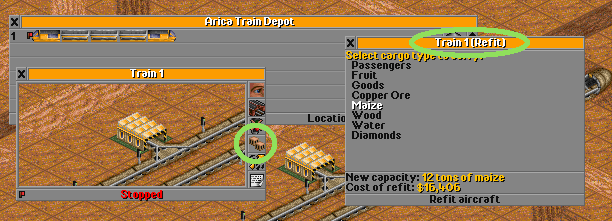
Since a few of the train engines come with a passenger or mail compartment, they were not very useful for other types of cargo because the "Full Load" switch could not be used. This has changed now with the fullloadany switch, but even so, train refitting may still make sense.
By enabling Train Refitting, you can now refit those engines just like planes to carry whatever cargo you choose. Only mail and oil are not an option yet, just like with the planes. (This might change in the future).
If enabled, it replaces the "Reverse Train" button with a "Refit Train" button whenever the train window is opened while the train is in a depot, but only for those engines that really have a cargo capacity. For all others, there is no change. In order to reverse the direction of a train instead of refitting it, just open the window while the train is not in a depot, where the direction cannot be reversed anyway. The status of this button does not change until the window is closed and opened again, even if the train leaves the depot.
Refitting is permanent, and stays even after the option is disabled, until the engine is sold or refitted again.
servint, -i
If you think that the train behaviour is annoying when it comes to service, because they keep going the wrong way looking for a depot, just set "Vehicle Breakdowns" to "None" in the difficulty settings in TTD, and enable this option. This will set the default service interval to 50 years, and no train will ever try to enter a depot again. You might also want to have a look at the Cht: ServInt sign cheat (see Sign Cheats).
You can give a different number to set all default intervals to 90 days for example, if you'd rather have them go to the depot more often.
Note that this only works for new engines that are bought while the switch is enabled. Use the sign cheat to modify already existing engines.
An alternative solution is to use the gotodepot switch; see Go To Depot.
nonstop, -n
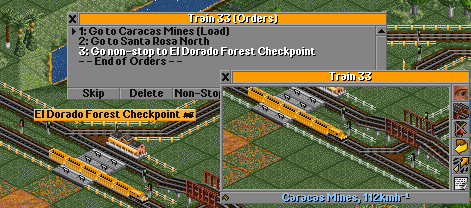
In order to get around the problem of trains not finding their correct routes in an elaborate network, it is useful to give them various "way points" or "checkpoints" along the route. These way points are dummy 1x1 or 2x1 stations that are then put on the train's schedule. That way you can force a train to take a certain path, when it would normally take a different, probably longer route.
The disadvantage is that normally these checkpoints have to be as long as the train to be efficient, and the train stops at them, which introduces an unnecessary delay.
By using this switch, you can now include these checkpoints in the route, and set them to non-stop. That way, the train will travel to them, but never stop or even just slow down, and will instead continue at its full speed. This even works if the checkpoint is only a single square large.
All stations without "non-stop" will behave as if they had the original "non-stop" set, i.e. the train will stop only at stations on its command list and none it encounters along the way.
This will apply for all trains, so do not use this if you have many routes which make use of the "non-stop" flag, because you will have to remove that flag from all those trains, or if you want your trains to stop at intermediate stations as well and don't want to change all the commands.
Note that there are two sign cheats, Cht: AllNonStop and Cht: NoNonStop which can be used to modify the schedules of all your trains if you decide to start (or stop) using this switch.
With this switch, the regular TTD title screen will break, because the monorail train does not stop at two dummy stations on either side of the road. As a result, the road vehicles won't stop in time and there will be collisions. To fix this, you can download an improved title screen from the Tools page of the TTDPatch website.
signcheats, -s
cheatscost, -Xo
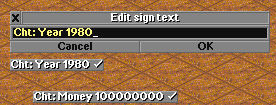
Sign cheats are a number of new in-game cheats which are activated by placing a sign and naming it Cht: <name of the cheat> <parameters>. If the cheat was successful, the sign name will show a tick mark at the end, otherwise it will show an X mark. Instead of the colon `:' you may also use a semi-colon `;' to accomodate players of the French DOS version which cannot generate a colon because of the keyboard mapping.
For a verbose description of the sign cheats, please see Sign Cheats (detailed).
Normally, the sign cheats do not cost anything, and can be used at any time. With the cheatscost option however, some of the cheats (at this time, only "Tracks", "Renew" and "PlantTrees") will cost the appropriate amount of money. In that case, you can append a question mark to the cheat, in order to see how much it will cost before actually using the sign cheat. For example Cht: Tracks 2 ? will tell you how much it would cost to convert your tracks to Maglev technology.
Once a sign has been placed and activated, i.e. if it has the tick mark or X, you can immediately remove or rename it again, the cheat will still remain active.
A note to international players: The English DOS versions of TTD use a QWERTY keyboard even if your local keyboard layout is different. If you have trouble finding the `:' key, it's to the right of the L key. Press shift and the key right to the L, and there you go!
It may also swap some keys, depending on your local layout. If many cases, y and z will be swapped. So please check if what you've typed is what appears in the sign name.
morevehicles, -x
In many games, it is easy to reach the maximum number of vehicles at 850. And 160 of these are reserved for other animated objects and steam or smoke plumes, so that the remaining 690 vehicles have to be shared by all human and computer players. And planes even count twice, because they carry both passengers and mail. (Helicopters count as three vehicles, because their rotor is also a vehicle...) This means that it is easy to run out of vehicles in games with many opponents.
This switch enables you to increase that maximum number, to more than 40,000 if you like. If you consider that there are only 65,536 squares in the map, it's obvious that this is more than enough. Vehicle memory is allocated in blocks of 850, and you specify the number of these blocks as a parameter to morevehicles. For example, morevehicles 2 allows you to have 2 times 690 vehicles, or 1380 vehicles, plus 320 reserved vehicles. Giving a factor of "1" is the same as not specifying this switch at all, and the maximum factor you can give is 40.
It is usually best to leave this switch set to a value as small as possible. Don't set it to 40 right away! Only increase the factor when you actually run out of vehicles. The reason for this is that this switch is not easily reversible, as opposed to all the other switches, and it will also slow down the game significantly if you use factors larger than 10.
Once a game has been saved with this switch set to a particular
number, it should only be loaded with this switch set to the same (or a higher)
number. Games saved with an
increased number of vehicles will also get a slightly different filename.
Normally, your savegames are of the form TRT00.SV1, with morevehicles
set they will instead be TRP00.SV1. This will prevent them from being
loaded by plain, unpatched TTD which would crash anyway.
It is always possible to load a smaller number of vehicles, so your old savegames can still be loaded. The program will simply fill the array with unused slots.
However, if you load a game that had the morevehicles swtich set to a larger number than it is set to now, the patch may have to remove some vehicles in order to load the game. In that case, you will get a warning message that tells you how many vehicles had to be removed. The game will be paused immediately, so that you have a chance to check the game for missing vehicles before resuming to play.
Note that if any special objects or special vehicles were removed, you must check your game, whether it had a zeppelin crashed on an airport, or a UFO landed and waiting for a military plane or helicopter. In that case, the zeppelin or the military vehicles may have been removed, which leaves your airport blocked forever, and the UFO will never get shot down. Otherwise, the removal of special objects is generally safe, and means you will lose some steam plumes, diesel smokes or electric sparks, as well as the steam coming out of some power plants. In that case, you might want to remove and replace the power plant in the scenario editor.
All in all, this switch is pretty powerful, but also somewhat tricky to use. Experiment at your own risk, and keep backup copies of the original games if they are important to you.
curves, -c
mountains, -m
TTD does not take into account the differences in the various train technologies. For example, the real Maglev trains do not have the same problems in curves and on hills as the traditional trains do; they can have a much smaller curve radius or pass the same curve at a much higher speed. When travelling across hills, they can have more power than on flat land, so that their speed decrease is often negligible. This is why I created this switch to correct that. In fact, this is why I started making TTDPatch, because otherwise you need too many bridges and tunnels and other normally unnecessary stuff to create an efficient network.
It also circumvents another bug, namely that there can be no signals inside tunnels. This makes larger tunnels rather useless, because it interrupts the flow of trains that have to wait until a train has completely left a tunnel. Thus, one has to either level the mountain (if there's no way around) which is ugly and costly, or lay the tracks on top of the mountain, which considerably slows down the trains as well. Until now that is, because now you can set it so that trains have no disadvantage when going over the mountain.
This switch also allows you to enable realistic acceleration of trains. Regular TTD uses a constant acceleration of trains, which is not realistic. In reality, acceleration of trains decreases with their speed. This switch can make trains use a more realistic model of acceleration. For more info on how it works, please see Realistic Acceleration.
The mountain and curve switches allow to select which
type of trains will use a higher
speed on mountains and in curves, and which ones use realistic acceleration.
There are two steps of acceleration; the
first one being simply higher speed and the second one doesn't slow down the
train at all. This can be especially useful if you have many "clover-leaf"
type crossings, where you have to have a few bridges.
The argument to mountain and curve is a four-digit number,
one digit for each of the four land-based vehicle types: railroad, monorail, maglev and
road vehicles. For each, you specify one digit from 0 to 3 with the following meanings:
For example, you might specify mountains 3320, which means: railroad
and monorail are realistic (3), maglev is "full speed" (2) and road vehicles
are normal (0).
If the electrifiedrailway switch is on (see Electrified Railways),
the meaning of the argument slightly changes: the second digit controls
electrified railroad instead of monorail, and the third digit controls the combined monorail/maglev system.
For curves, setting 3 ("realistic") is implemented by limiting the speed of trains in a curve. It's slower the more curving segments the train is on currently. For road vehicles, the speed is limited to 75% of the top speed.
Note that if you're using realistic train acceleration, it is possible to make a train that is too heavy. If the engine is not powerful enough to overcome the initial friction, the train will not be able to leave the depot. What's even worse is that the engine may be powerful enough for an empty train, but as soon as the train is full, the increased weight may mean that it'll be unable to leave the station.
In addition, it may happen that a train gets stuck on a mountain, again because the engine is not powerful to pull the train's weight uphill. If this happens, you will either have to remove some waggons, or add more heads to the train using the multihead feature. Note that if the engine is too weak to move the train at all, it will still be able to move exceptionally slowly. This will allow you to send it to a depot to rearrange the train even if it really shouldn't be able to move at all.
Finally, note that realistic acceleration assumes trains propelled by wheels. That means it's not appropriate for maglev systems, for which you should use either the "faster" or "fastest" settings.
planes, -p
roadvehs, -r
ships, -b
trains, -t
The total number of trains and road vehicles allowed per company in one game is arbitrarily limited to 80, ships to 50 and planes to 40. These limits are "soft" limits, meaning that they are enforced by counting the trains and making sure you don't have too many. The "hard" limit is 255-15=240, which cannot be exceeded because of the way consists are numbered. The soft limit is probably only there for performance reasons, or maybe a silly design decision.
With this switch, each company can have up to 240 trains, planes, ships and road vehicles of its own.
Note that the total number of schedule orders is not increased, nor is the total number of customised consist names. There can in total only be 5000 orders, which in the default configuration translates to 20 orders per consist. However, if you set all limits to 240, you can on average only have about 5 orders per consist, including the "End of orders" markers. An individual consist can have up to 25, but then some have to have less than 5. The game will not allow to have more, so that you might run out of orders instead of trains.
The same limit applies to the consist names, but it is not as important, unless you can't live without your trains all having their own name. The maximum total number of custom strings is 500; this includes manager's name, company name, custom vehicle type names, signs etc.
This switch is reversible, and only applies to new vehicles. If you turn it off while you have 150 trains, you will still be able to keep those, but you won't be able to buy any new ones.
Note that on the command line you can specify the values for all switches at once using -trpb 240 for example.
spread, -e
Use this to get rid of that pesky "Station too spread out" message. Usually the maximum distance between any part of a station is 11 squares, which can be too small if you try to combine a large airport with a large train station (especially an extended one). A more useful number is 20 for example, and the upper limit is 255, which is the size of the world, to make it work just like in the original TT.
This also makes it possible to have several detached station facilities, by "walking" them away from the main terminal. For example, you could build a train station, and attach a bus station. Then, you attach a truck loading bay to the bus station, away from the train station. When you now remove the bus station, your station will be in two separate pieces. The next step is to place the bus station on the opposite side of the truck loading bay, and repeat this process for as long as you like. Then, you can build an airport that belongs to the same station as the train terminal, but is in fact many squares away from it.
largestations, -l
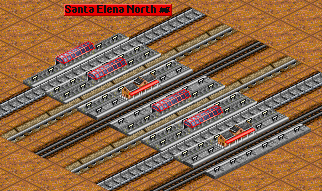
When you use this, you don't have to bulldoze stations anymore to add extra tracks. Just select the same platform length, move your cursor with the new platforms next to the old station, and place them. That way you can even get up to 7 platforms.
The length can also be increased, to up to 7 squares length, using the same process, but choose the same number of platforms and the additional length, to get platforms up to 7 squares long.
Note that you should also turn on the Enhanced Graphical User Interface feature to be able to directly select longer and more platforms. Without the enhanced GUI, you can have a full size station of 7x7 squares by holding down the Ctrl key when clicking on the number of platforms or their length. Note that it looks like the wrong button has been pressed, but that's because larger numbers can't be displayed without the enhanced GUI. Simply look at the station's footprint before you place it to make sure that it is the desired size.
Because the added parts will look as if they were placed alone, the station design is now up to you. You can have a two-platform station that looks like two one-platform stations, or alternate roofed and non-roofed sections, if you like that. Just alternate between adding 1 and 2 platforms to the station to get this.
And most importantly, this allows you to have different kinds of trains in one station. Just add a platform of a different type to have railroad, monorail and maglev platforms in a single station.
Note that if either the platform length is different, or the total number of tracks would be greater than 7, or the position doesn't match then you will see the old message "Too close to train station", not a more appropriate message.
loadtime, -q
(Note that this switch has been mostly superceded by the gradual loading feature, see Gradual Loading.)
In the original algorithm used to calculate how much time a trains spends in getting loaded/unloaded, there are two major bugs.
First, while loading time depends only on the amount of cargo, unloading depends on the type of cargo as well. Passengers will be unloaded instantly, while valuables will take forever. This does not make sense, it must be a bug.
Second, this time is multiplied by the number of cars sticking out of the station. If there are four cars sticking out, you'd have to wait five times as long, which doesn't make any sense either.
In this improved calculation, unloading time is again based on the amount of cargo and takes the same time as loading it. The bigger change though, is that the program assumes that for example a length four station can serve up to eight cars at the same time. This would mean that the time it takes to load/unload two cars is the same as for four or eight cars. This makes sense, because why would you want to build a large station if it can't effectively handle more than one car at the same time?
Also, the problem with cars sticking out is alleviated in two ways. The reasonable assumption behind them is the following: the train enters the station and gets as many cars loaded/unloaded as possible in one go. The engine will in most cases not be a part of this and can be ignored because it doesn't carry any cargo. If not all cars were able to fit in the station, the train will move the next set of cars in and have those unloaded. This will continue until the train is done.
A short summary:
To make it even clearer, here is a list for a length three station which can handle up to six cars at the same time. The engine is assumed not to be a cargo-carrying engine:
| Train length | Load/unload time (arbitrary units)
|
| Eng.+1 car | 1
|
| Eng.+5 cars | 1
|
| Eng.+6 cars | 1
|
| Eng.+7 cars | 2
|
| Eng.+11 cars | 2
|
| Eng.+12 cars | 2
|
| Eng.+13 cars | 3
|
| Eng.+18 cars | 3
|
| Eng.+19 cars | 4
|
| and so on...
|
I find this to be a very reasonable calculation that makes sense and is realistic. If you don't, then you can always turn it off.
The unit time depends only on the average amount of cargo in each car. For example, if all cars are only half full (on average), it will only take half as much time.
However, the time it takes now for one single car is longer than previously. This switch was not meant to speed up loading/unloading but rather make it more sensible. "1" load time here is approximately the time it previously took to load six to eight cars.
mammothtrains, -z
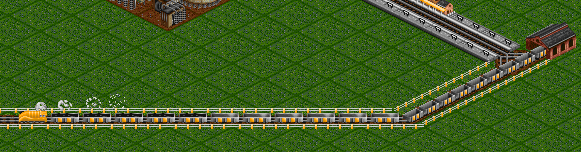
If you use this switch, there is no real limit to how many cars your trains can have. Well, there is a limit, but 127 cars is just so much that it won't matter. Really. Trust me. Especially since it would take ages to buy such a train...
This is meant to be able to fully use length five (or seven) stations with the above switch. Now you can have a double-headed engine and ten cars and still load it without penalty. If you intend to buy really long trains, you should really enable the improved load time calculation or the train will be in the station forever.
You will still only see a limited number of cars in the depot. With enhancegui
(Enhanced Graphical User Interface) you'll see 14 or 18 wagons and
engines, depending on the setting. Without enhancegui, you'll see ten wagons
as usual. This means that if you want to rearrange
your train, you'll have to work in reverse, adding cars at the front of the
trains.
The depot also behaves slightly different, because when a new train only used to attach at most nine cars to it, now it will take all that are available (up to 127). This means that you shouldn't try to upgrade two trains at the same time, because one of them might get all the cars which could cause a headache.
Another thing is that this can make the layout process of a station very challenging. Even though you may not get a penalty (or at least not as much) for a bit of train sticking out of the station, the cars will still be there and block tracks and cause signals to remain red. If you don't leave enough space at the entrance of a station, there will be a major traffic jam.
And, most importantly, if you have a really long train, try not to make it go atop any mountains. Although, surprisingly, even a fully loaded 126 car train, at a total weight of around 7000 tons, made it. It was only moving with a few MPH, but it's still amazing (and not very realistic) that it made it eventually. However, if you're using realistic train acceleration, it is possible to make a train that is too heavy and will take ages to move (see New Curve and Mountain Handling).
So, I suggest you don't go over about 20 cars or so, except maybe for a bit of fun. You can even make a train go through itself without crashing...
presignals, -w
extpresignals, -Xw
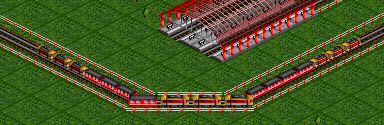
These switches introduce a new type of signal to TTD, the "pre-signal." This signal is in some sense similar to an advance signal, but it's not quite the same. For a detailed description of how pre-signals work and in what cases they are useful, please see Pre-signals (detailed).
Note that you need to load signals.grf to be able to distinguish pre-signals
from regular signals. See New Graphics for more details.
The idea of pre-signals is quite simple: a pre-signal shows a green light if, and only if, one of the exit signals from the block behind it shows a green light. This means that trains will only enter the pre-signal block if there is a green exit. As a result, the block will only be entered for short times and trains will leave it immediately, allowing for a very efficient layout. This is particularly useful for station entrances, but can also be applied in other cases.
The presignals switch activates automatic pre-signal configurations. Using this options, your signals will be converted to pre-signals and pre-signal exits whenever a train enters a block that qualifies as an automatic pre-signal block. For a definition of what this needs to look like, please see Pre-signals (detailed). Whenever you modify the block (i.e. add rails, remove them, etc.), the automatic signals will revert to regular signals. Note that in no case will your manual settings (see below) be modified.
With extpresignals, you will be able to manually modify each signal, and force it to be either a pre-signal or a plain signal, no matter whether it is in a valid automatic pre-signal block. The way to change them is the same as switching between one-way and two-way signals, but you hold down the Ctrl key while doing so. That is, you select the "buy signal" option from the railway menu, press the Ctrl key, and click on the signal you want to change. Its appearance should change as a result, and you can verify the setting by using the query tool.
You can also remove your manual selection by choosing "buy signal" and the bulldozer, and then clicking on the signal while holding Ctrl. In other words, you do as if you would remove a signal from the track, but with the Ctrl key pressed.
You can also specify both options, in which case you will get automatic signals but can override them using the manual selection.
Please read Pre-signals (detailed) for a more detailed description of how pre-signals work and what types of setups are useful.
noinflation, -I
This switch turns off inflation. However, it only works from the point it was turned on into the future, and doesn't undo any previous inflation. Prices stay at their current amount, but they won't increase anymore. This affects everything, income, purchases and maintenance/running costs, and for all players too.
Use this if you frequently have too much money, because without inflation you'll get much less money.
Note that you still pay the same amount of interest, so now interest is much more important than if inflation is turned on.
debtmax, -L
When borrowing or repaying a loan, you can hold down the Ctrl key to borrow/repay the maximum amount possible, as opposed to having to click the button 1001 times. This is only limited by the amount of cash you have or the maximum loan possible.
enginespersist, -P
There are some problems with engines becoming obsolete. For example, there are no more helicopters available after about 2030 so heliports become obsolete too, or you might want to have a particular engine even though there are newer ones, maybe because it is relatively cheap but sufficient for a certain purpose.
Or perhaps you want to be able to buy steam engines in 2000, which would cruise along scenic mountain ranges... (thanks to Wolfgang Preiss for that idea!)
What this patch does is not to let any engines in use become obsolete. Any engine that exists in the game can always be purchased. With this and Cht: Year, you can basically continue a savegame playing forever.
Also, the reliability remains at the peak, with the reasonable assumption that if you still have it, you'll also have some engineers who know how to repair it, right? An engine doesn't just get less reliable because it has been designed a hundred years ago. It might not be up to par in all the specifications, but why should it suddenly start to deteriorate even if you just bought it?
Only after the last of its kind have been sold will it start to deteriorate, and eventually disappear, because nobody knows how to build and properly repair them anymore. If you really want to hang on to some engine, make sure you always have one in stock, maybe in a depot somewhere. It just needs to exist, it doesn't have to run at all.
This patch will also re-enable the purchases of engines that you still have but can't buy anymore.
fullloadany, -F
Basically fixing the same problem as the train refit option does, this makes full load behave a bit differently. Instead of waiting for every car to be full, now if there's any type of cargo that's full will mean that the train leaves the station.
So, if you have a train that transports passengers, mail and valuables, you can set it to full load and it will leave when any of those reach their maximum capacities. This also works for planes, so that they leave when either mail or passenger compartments are full.
However, it is no longer possible to enforce a complete full load for mixed cargo trains.
selectgoods, -G
Sometimes you may want to build two stations at a busy factory, one for deliveries of steel etc. and one to pick up the goods. The problem is that normally goods will appear at both of the stations, making this setup rather useless.
With this patch, no goods will appear until a carrier for that particular type of cargo has arrived.
Think of the factory manager being very mistrusting. He won't send any cargo to your station until he's sure it'll be picked up, because he's afraid that it might spoil. This means that you have to prove your capabilities by showing him your carrier.
So, if you just make sure that no goods trains ever enter your delivery station, you'll never see any goods there, and you won't get bad ratings for not picking them up. This is easier to do with the new non-stop handling, because that way no train will stop at the station if it isn't on the schedule. On the other hand, the pickup station will only ever see goods, even if there's a coal mine nearby, which might have its own station.
However, if only a single train tries to pick up goods at the delivery, or coal at the goods station, they'll continue to appear forever, so be careful. The only way to reset this is by using the Cht: ResetStation cheat.
officefood, -O
In the tropic and arctic climates, the office towers by default accept passengers, mail and goods. This sometimes prevents a city from growing further, because it doesn't accept food at all.
With this switch, all the office towers accept an amount of food that is calculated by (passengers+goods)/4, rounded down. So an office tower accepting 4/8 passengers and 1/8 goods would accept 1/8 food too.
Note that this doesn't show up in the query tool, but it is taken into account when determining what a station will accept.
extradynamite, -D
This switch makes your dynamite more powerful. With it, you can remove more things from the map:
The "forbidden" roads are the ones that connect to more than one other piece of road, i.e. the middle piece in a longer street or intersections. You can also remove city bridges as well as bridges and tunnels owned by nobody else.
You can remove the forbidden roads if your rating is at least "mediocre", otherwise the city will refuse to let you bring dynamite anywhere near the roads.
Of course, going against the local authorities' wishes does not exactly endear you to them. In fact, your rating will go down by an amount equivalent to the removal of a few trees if you destroy a road that is not an end piece, and by even more if you destroy a city bridge. So you should only do this if you must, and try to remove as few forbidden roads as possible by carefully planning ahead what you want to tear down.
keepsmallairport, -k
With this option, you can always build small airports, even if you don't have any planes that can land there anymore. But at least helicopters can land safely, and it can hold more helicopters than a heliport, as well as being able to service them in the hangar.
Computer players do not get this benefit, because they aren't smart enough to use it properly. They'd build large planes and try to land them on small airports, causing an untold number of crashes. This option only applies to human players.
Note: In versions of TTDPatch earlier than 2.0 this option affected computer players as well as human players. In the games saved with those versions, computer players will retain the ability to build small airports after 1960 until the end of a month, or forever if the year is already 2050 or later.
longbridges, -B
With this switch, it is possible to build bridges up to 127 squares long. At a steep price of course. This is possible for all bridges that could previously be built with a maximum length of 20. These are the wooden bridges, steel suspension bridges and the tubular steel bridge. The other bridges aren't extensible and keep their maximum length.
aiboost, -A
This switch is deprecated, and does not work as intended. Do not use it.
With this switch it is possible to try and make the AI (`artificial intelligence', i.e. computer players) slightly more intelligent. However it is currently of limited use, and large values (greater 5 or so) can make the game very sluggish, or in fact even stop it completely. Don't activate this unless you know that it can lock up the game.
This works by modifying the so-called "recursion factor" in the game. This determines how far ahead a computer tries to look. However, the time spent doing this increases exponentially with that factor, and that's why you should be very cautious in increasing it.
If a too large value is selected, it may easily happen that the computer stops responding, because a route evaluation is suddenly taking several hours when normally it would be done in a few milliseconds. And since these evaluations happen frequently, even reasonably small increases are noticeable in small, but frequent pauses.
This switch is more of an experiment than it is useful, since any reasonable changes doesn't seem to affect the computers' stupidity, they still build they same brain-damaged routes no matter what you try. So, feel free to play with this switch, but don't expect any large effects to happen.
multihead, -M
This switch makes it possible to add extra engines to a train. This can be especially useful in the early game, or in mountainous terrain. The extra engines increase the total power available to accelerate the train, but of course they also add weight. This means that extra engines only make sense if they weigh much less than the total weight of the train, otherwise they are a waste of money.
Another small benefit of additional engines is that they increase the maximum speed slightly, because there is some excess power available to accelerate the train to a higher speed. The first additional engine adds 20%, the next one 10%, and a third extra engines add another 5%. After that adding more engines will not increase the speed any more. The amount of this increase (in percent) is an option to the switch, the default is 35% in total. If you want the game to be more realistic, you should probably disable the speed increase using multihead 0. Otherwise, the parameter can be anything between 0 and 100, in which case the additional engines add 4/7, 2/7 and 1/7 of that amount, respectively.
Now the big question is, how do you buy these additional engines? Here, the answer is once more the magic Ctrl key. Simply open a depot with a train in it, and select the engine to buy. Now, before you click on the "Purchase" button, hold down the Ctrl key, then click the button. This creates a new engine that behaves sort of like a carriage, in that you can place it anywhere on the train. If you have the train info window open, you can see how the train power and speed changes if you add or remove engines.
A slight complication arises for the engines that normally come with two heads, like the Asiastar for example. In this case, when you buy an engine, you'll only buy a single one and not both. Then, using the Ctrl key, you can buy a second or even a third engine. Note that the maximum speed given in the purchase window is the one for a dual-engine train. This means that if you only buy one engine of the Asiastar, it will actually be slower than what is stated in the window. Only adding a second Asiastar engine will raise the maximum speed to the normal value.
The Ctrl key also has another function. It selects which way an engine faces. If you move an engine around in the depot while holding down Ctrl, it will face one way. If you move it without holding Ctrl, it will face the other way.
In multiplayer games, the Ctrl key doesn't work. Here, you buy additional heads if there is already an engine in the depot. This means that the first engine you buy is a regular one, all other engines are additional heads. You can therefore only have one train in a depot when buying engines, and to buy a new train, you must not have another train in the depot..
rvqueueing, -R
Have you ever wondering why these stupid truck drivers just turn around when they arrive at a busy station? Why don't they just wait till it's their turn?
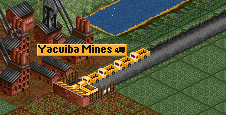
In order to fix this behaviour, simply enable this switch. Now trucks (and buses) will wait at the entrance of the station, and enter the station as soon as a loading bay is available. This has two advantages. First, it means that the trucks don't go and run around in loops. Second, it makes a station much more orderly, and actually reduces the amount of traffic jams that occur at a station's entrance. This will also help you gauge how many trucks you need on a certain route. If too many trucks are waiting at a station, that means that you should remove some from this route.
One problem with this is that vehicles may still "stack up" if they wait too long, making several vehicles occupy a single piece of the road. This might cause a traffic jam, and will also mess up the order in which they arrive at the station. To avoid this, make sure that you don't send too many vehicles to a loading loading bay or bus station.
This patch was contributed by Marcin Grzegorczyk.
lowmemory, -Z
Using this option, it is now possible to run TTDPatch on computers that have as little as 4 MB of memory. Without it, TTDPatch needs at least 9 MB to run. The only disadvantage of this option is that it makes it impossible to load savegames with a larger vehicle factor than specified.
You have to try how large a vehicle factor you can get, depending on how much memory you have, and how many new graphics you are loading. If you run out of memory, the game will not start.
This option has no effect on the Windows version of TTDPatch.
generalfixes, -g
This setting is a combination of many small patches. They are combined because there is only a limited supply of command line letters, so that things that are unlikely to be turned off by anyone are all included in this option.
Here's what this option fixes in the current version of TTDPatch:
Fixes contributed by Marcin Grzegorczyk:
Note that although you may be able to change the side of road for vehicles to drive on while they're already running, it is not a good idea since this may confuse TTD's road vehicle movement code, and some vehicles may get stuck at stations. Make this choice in the main menu, before playing the scenario.
extradynamite switch (see Extra Dynamite) is turned on.
towngrowthlimit,
towngrowthratemode, or largertowns switches (see New Town Growth Switches) is enabled.
towngrowthlimit,
towngrowthratemode, or largertowns switches is enabled. (*)
vehicle.dat,
if that file is present) when a scenario is started
Fixes contributed by Norman Rasmussen:
win2k switch is turned on.
Fixes contributed by Csaba Varga:
miscmods switch is set,
they will not crash on large airports either.
,) and periods (.) as thousand separators
in initial loan size in the Difficulty Settings window with some currencies. This fix is also
applied when the morecurrencies switch (see More Currencies and Euro) is enabled.
Fixes done by Josef Drexler himself:
(*) These specific fixes can be disabled with the miscmods switch, see Miscellaneous Modifications.
In the future, more fixes may join this category, but that's all for now (in case it's not enough for you).
moreairports, -J
Normally, you can only build two airports within a city's area of influence. Lobbying by powerful Transport Tycoons has led the politicians to allow this option, though. However, the population is still upset by all the noise so you cannot build an unlimited number of airports, even with this option.
So how many can you build then? The basic idea is the concept of "noise units". In total, you are allowed to have up to nine noise units per city. And here's how many noise units the different types of airports use up:
| Type | Noise units | Maximum number per city
|
| Small airport | 2 | 4
|
| Large airport | 3 | 3
|
| Heliport | 1 | 9
|
Of course you can also combine the types, and just add up the noise units. For example, you can now build one large airport, two small ones, and still two heliports, because that adds up to exactly nine noise units.
planecrashcontrol, -Xc
Using this switch you can determine under what circumstances planes may crash, as well as the probability of this happening.
The switch is a bit switch. To find out how that works, see Bit Switches, or simply add up the values of the options you want:
| Bit | Value | Effect
|
| 0 | 1 | Normal plane crashes are turned off if disasters are turned off
in the Difficulty Settings window in TTD. This does not affect crashes that occur when a jet
plane tries to land on a small airport -- i.e. those crashes are not "normal".
|
| 1 | 2 | Jet planes landing on small airports don't crash if disasters are turned off.
|
| 2 | 4 | Normal plane crashes occur only when a plane lands after a breakdown,
but then they are four times more likely than normally. If this option is specified
together with the next one, it affects all plane crashes, not just normal ones.
|
| 3 | 8 | Jets landing on small airports have the normal crash probability.
|
| 4 | 16 | All normal plane crashes are turned off, regardless of other settings.
|
| 5 | 32 | Jets landing on small airports never crash, regardless of other settings.
|
For example, with planecrashcontrol 5 normal plane crashes occur only when a plane is broken down, and only if disasters are turned on; planecrashcontrol 48 disables plane crashes altogether.
With this switch turned off, the normal crash probability is about 1 in 1500; for jet planes landing on small airports, the probability of a crash is 1 in 20.
(This patch provided by Marcin Grzegorczyk.)
bribe, -Xb
This switch adds a bribe option to the local authority menu. Using this option will increase your local authority rating by one level, unless the rating is very appalling, in which case it might take several bribes. There is a 7% chance of getting caught by a regional investigator, which will reduce the rating to "poor", and bar you from interacting with the local authority for six months.
The cost of the bribe depends on various factors. If you have lots of cash, it will be more expensive, as it will be for a larger city. However, if you already provide a good service to the citizens by transporting lots of passengers and mail, the cost of the bribe will be reduced.
Using this option causes extended town data to be collected; see More Town Statistics for more information.
showspeed, -Xs
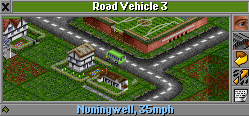
With this switch, the vehicle window will show the current speed in the status bar. This is not really useful, but it is nice for comparing two engines with respect to power and maximum speed. For example, if you have a hilly terrain, this might help you choose between an engine with a high speed but low power, and one with a lower speed but more power.
autorenew, -Xa
forceautorenew, -XA
Using the switch "autorenew", all vehicles will be automatically renewed the given number of months before (or after) they reach the maximum age. Note that they will be replaced by an identical vehicle, it is not (yet?) possible to change the engine type. Vehicles with an obsolete engine will not be renewed.
Normally, with "autorenew", the vehicles will be renewed at the next service, or whenever they enter a depot. If you also enable "forceautorenew", they will be sent to a depot and renewed immediately, as soon as they are too old. Setting "autorenew" without "forceautorenew" will not work properly if you are also using the new service intervals, in which case a vehicle will never go to the service where it would be renewed.
The value given with either of these switches determines the number of months after the maximum age when they are renewed. This value can be negative, in which case vehicles will be renewed before they reach the maximum age. Since you get the first warning of a vehicle getting old a year before it reaches the maximum age, you have the following options for the value of this switch:
The default value is -6, which means that after the first warning, you have half a year to manually replace the vehicle, otherwise it will be renewed with the same vehicle type. If you do get the second warning, it means that something is going wrong: the vehicle could not be renewed and you should pay more attention to it.
The way this renewal works is that when it is time to renew a vehicle, and if you have enough money to actually do the renewal, it will start looking for a depot, as if it were going for a standard maintenance. However, in addition to the maintenance, the vehicle (actually, the entire consist) is also renewed automatically, and the cost is deducted from your account. Afterwards, the vehicle continues its regular schedule, it even keeps the cargo if it had any.
forcerebuildovl, -Xr
This option causes TTDPatch to always rebuild the ttdpatch.ovl file from scratch, even if
it is already valid. This is useful if you modify the TTD executable regularly, for example
using TTD Alter (see Other Tools). With this option, the changes will be integrated into
the version that TTDPatch uses, without the need for a batch file to clear ttdpatch.ovl
or manually deleting it.
win2k, -2
This switch applies some patches that make the Windows version of TTD compatible with Windows 2000/XP. It was contributed by Norman Rasmussen.
With this switch turned on,
you simply run TTDPatch under Windows 2000 or XP, and it should work. You may have to delete the ttdpatchw.ovl
file if you tried to run an earlier version of TTDPatch.
To play on Windows 2003, you need to turn on this switch, and copy the file
dplay.dll to dplayx.dll, or get a copy of dplayx.dll. Search
for this file on your computer if you don't know where it is.
Additionally, this switch enables the use of dxmci.dll, a DLL that changes TTD's music routines
to use DirectMusic, instead of the outdated MCI functions. To use it, simply install dxmci.dll
(available from the TTDPatch tools page)
in your TTD folder, and turn on the win2k switch. Now TTD will use DirectMusic to play its music.
This may make the music sound slightly differently than what you are used to, because DirectMusic will use
its own instrument definitions for the MIDI music.
Note that some computers running Windows 98 experience a crash when exiting TTD, if dxmci.dll is
used. The cause of this crash is not clear, nor does anyone know how to fix it. It is benign however,
aside from writing a crash log (crash###.txt) every time you quit TTD.
diskmenu, -Xm
This switch will change the gray bar in TTD's disk menu to show a "load game" entry. This way, you don't have to quit the current game to be able to load a new game.
It also changes the scenario editor to show a "load game" option in the disk menu as well. In addition, this entry will change to "save game" when you hold down the Ctrl key. This way, you can load a savegame in the editor, make some changes, and save it back as a savegame. Note that there are some minor problems that can occur if you do this, such as towns taking over ownership of all road-railroad level crossings. To correct this afterwards, you have to use the "OwnCrossings" sign cheat.
Note that it is not possible to save a scenario as a savegame unless it has been played as a savegame before. The reason for this is that otherwise, no companies have been founded, and effectively you are not a player in the game. Even your mouse is disabled! So, only save a game as a savegame that you actually loaded as a savegame too!

feederservice, -Xf
This switch allows you to operate a feeder service, that is a service which transports cargo from one station to another, where it is not delivered but rather left for another carrier. An example would be a bus that transports passengers from the city to an airport, where they are then picked up and transported to a different city by a plane.
To make use of this switch, you have to select the "unload" option in the first carrier's orders, which will force it to not deliver its cargo but rather add it to the station's cargo list. This works with as many carriers in a chain as you would like.
In addition, this patch improves how carrier profit is calculated. Normally, all carriers in such a chain contribute to the revenue, but only the final carrier gets credited with positive profit, all others get negative profit through their running costs. With this patch, all carriers get appropriate profit depending on how fast and how far they transport cargo.
This also works with a chain of more than two carriers, although in that case the final carriers get less and less of their fair share of the profit, because the cargo is on its way for a longer time, leading to smaller profit.
Note that only the very last carrier in a chain will actually generate income. Only a successful delivery will give you money, the profits in-between are only for accounting purposes, they do not actually contribute to your bottom line. The main reason for this profit calculation is the company performance ratings, which take into account the carrier with the least profit. If you have feeder services without this patch, that will of course mean the least profit of all but the last carriers in the chain is negative, even though every carrier actually does help generate revenue.
If you temporarily take over another company using the subsidiary management or Cht: PlayerID, the feeder service option is only active in your original company, and not in the computer company you're managing temporarily. The reason for this is that computer players turn on the "Unload" option in almost all of their services, which means they would all be considered feeder services and not earn any money.
gotodepot, -Xd
This switch allows you to add depots to a vehicle's orders. When adding a new order, you can simply click on a depot (or hangar) to send the vehicle there as part of the schedule.
You can use this to force servicing at a station entrance, so that trains are less likely to break down inside the station. You can also use depots as crude waypoints by sending trains to a specific location. This is also very useful for ships, where you can now use depots instead of buoys.
These depot orders come in two variations: always or only after the service interval. You choose between the two variations by clicking on the "Full load" button in the vehicle orders. If a vehicle is ordered to always go to a certain depot, it will go there everytime it comes to that entry in the schedule. However, if you choose the "service only" option, the vehicle will ignore that order unless its service interval has expired. Note that it will skip the order as soon as it leaves the previous station, so if the service interval expires while the train is on the way, it won't go to the depot until the next rotation of the schedule. You can work around this by placing a waypoint station (see New Non-stop Handling) just in front of the depot.
Additionally, whenever a vehicle has any depot on its order list, it will never try to go to any other depot. It will always go to that particular depot, which means it won't get lost looking for another depot or run around in circles.
newships, -S
newtrains, -T
newplanes, -XP
newrvs, -XR
loadallgraphics, -XG
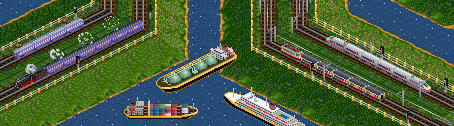
If you're bored with the selection of vehicles that TTD has to offer, this switch is right for you! It allows the use of new graphics files to modify the existing vehicles. You can have new trains, ships, planes and road vehicles.
For a list of available graphics sets, please go to the TTDPatch New Graphics page.
Each of these switches enables new graphics for that particular vehicle type, except for "loadallgraphics", which makes TTD loads all new graphics into existing savegames. Normally, only those graphics are loaded that were active when the game was saved. See New Graphics for more information on how to enable and use them.
subsidiaries, -XS
Normally, there is little incentive to buy shares of another company, except for buying it out entirely. Even if you own 75% of the shares, you get none of the profit, you get no control over the company and it's as if you didn't own any shares at all.
Using the new subsidiary management however, you can manage a company that you own 75% of. Once you own 75% of a company, you can open its player info window, and the usual "View HQ" button will become a "Manage" button instead. If you click this button, you temporarily switch companies, and can now build new services, remove services or do anything else you want.
When you're done managing the subsidiary, you can open your own player window, and click the "Manage" button there to return control to your own company.
Note that after you manage another company, the computer AI will take over the management of that company, and it may do with it what it wants as well. This means that you should try not to build confusing (to the AI) train routes or services, because it may decide that they are unprofitable and remove them again.
moveerrorpopup, -E
If you are annoyed by the red error messages always popping up in the middle of the screen where you are working, you can enable this switch, and it will move error messages to the top left corner of the screen, where they will be less intrusive.
gradualloading, -Xg
Normally, when a consist arrives at a station, all of its cargo is unloaded and the new cargo is loaded instantly, and then it sits there waiting for a few seconds.
With this switch, all loading and unloading processes are changed so that they occur gradually. Instead of loading or unloading everything at once, only 5-10 units of cargo per vehicle are loaded or unloaded at a time. This means that you can watch your train window and see how the cargo gets loaded or unloaded. This is especially useful for the new ship graphics, which are capable of showing different loading states. Without this switch, you'll probably never see how the ships are being loaded or unloaded.
Another useful property of this switch is that trains can have some carriages being loaded while others are still being unloaded. This can sometimes speed up the loading and unloading in a train station. Also, a vehicle will not leave the station while there is still cargo available for loading, no matter what the setting of the "full load" option is. This is true even if the new cargo appears when the vehicle is already being loaded, the new cargo will just be loaded as well, until the consist is full or no more cargo is available for loading.
Note that the gradual loading switch requires that the loadtime switch is active too, and will always activate it if you haven't already done so. It also changes the loading time by making it cargo type specific, meaning that one type of cargo can be done with loading but another still has more cargo to be loaded or unloaded. Because of this, sometimes train can take a bit longer to load if you have an uneven number of carriages for each cargo type.
Normally, gradual loading loads or unloads all wagons of a train at the same time. This may have some side effects if the train has multiple destinations, for example if it loads coal from several stations. In that case, the coal that's added at the last station causes the entire load to be considered to be from that station. This means you'll get less money than you should have. You can use the "miscmods" switch to choose to have the wagons loaded separately. See Miscellaneous Modifications for more details.
disasters, -XD
This switch allows you to select or deselect specific types of disasters that may occur in the game. It only applies if disasters are enabled in the difficulty settings. For example, you can use this to turn off UFO disasters because they're unrealistic.
The switch is a bit switch. To find out how that works, see Bit Switches, or simply add up the values of the options you want:
| Bit | Value | Disaster type
|
| 0 | 1 | Zeppelin crash
|
| 1 | 2 | Small UFO
|
| 2 | 4 | Refinery explosion
|
| 3 | 8 | Factory explosion
|
| 4 | 16 | Large UFO
|
| 5 | 32 | Small submarine
|
| 6 | 64 | Large submarine
|
| 7 | 128 | Coal mine subsidence
|
Plane crashes are not affected by these settings, for changing them please see Plane Crash Control. Also, the submarines are not really disasters, they are just handled by TTD in the same way so they are included here for completeness sake.
Note that for each disaster type TTD has a range of years in which the disaster may occur. For example, refinery explosions are possible only between 1960 and 1990, after 2009 only large UFOs may show up, and before 1930 (see New Starting Year, Year Cheat) or after 2099 (see Eternal Game) no disasters will occur at all. These year ranges may be changed using TTD Alter (see Other Tools).
Also note that if you disable some disaster types, the others are more likely to occur. When TTD decides it's time for a disaster, it always generates one, unless there are none to choose from....
This patch was contributed by Marcin Grzegorczyk.
signal1waittime, -X1
signal2waittime, -X2
These two switches allow you to select how long a train waits at a red signal, either a one-way signal or a two-way signal. Both take a parameter between zero and 254 that is the maximum number of days to wait, or the value 255 for waiting indefinitely.
Normally, a train waits approximately 41 days at a red one-way signal and 15 days at a red two-way signal, after which it turns around and tries to find an alternative route. If you are sure that the signal will turn green eventually, you can tell all trains to wait a longer time, or to wait forever.
This patch was contributed by Marcin Grzegorczyk.
morenews, -N
After enabling this switch, TTD will generate news items for additional events.
In the current version of the patch, these are
This patch was originally contributed by Marcin Grzegorczyk, but the lumber mill and plane crash messages were coded by Csaba Varga.
unifiedmaglev, -XM
This switch combines TTD's monorail and maglev track systems into a unified maglev system. The rationale behind it is that Transport Tycoon's monorail seems to be modelled after the German "Transrapid", which is actually a maglev (magnetic levitation) system as well.
This switch works differently, whether the electrifiedrailway switch
(see Electrified Railways) is on or off. For electrifiedrailway off,
it can take the following parameters:
unifiedmaglev 1: Convert all maglev engines to monorail
unifiedmaglev 2: Convert all monorail engines to maglev
unifiedmaglev 3 (default): No conversion, keep two seperate systems
The conversion of the engines only applies to new games, or if you use Cht: ResetVehicles.
In all of the three cases, you can buy monorail engines in maglev depots and vice versa. Wagons are not affected.
In the first case however, the maglev construction option will not appear, because there are no maglev engines (but if it appeared before, it'll stay). In the second case, the monorail construction option will not appear.
If electrifiedrailway is set to on, all monorail engines are converted to maglev
(like option 2 above) and monorail wagons are made unavailable. In this case, the parameter
selects how the maglev system will look like:
unifiedmaglev 1 (default): Use TTD's monorail graphics to display the maglev system
unifiedmaglev 2: Use TTD's maglev graphics to display the maglev system
With electrifiedrailway on, if you set unifiedmaglev
to 3 or off, TTDPatch will change it to 1 internally.
This patch was contributed by Marcin Grzegorczyk.
bridgespeedlimits, -XX
One annoying thing about bridges in TTD is the speed limit they impose on maglev trains. In the standard TTD set of vehicles, the fastest maglev engine can go at 400 mph, but the best bridge (the tubular steel bridge) has a speed limit of 200 mph, whether it carries road or maglev track. And if you need to build a bridge 3 tiles long, you can't use the tubular one, you can only use a steel girder bridge with its speed limit of 160 mph.
With this switch, you can raise the speed limits of these two bridge types,
if they carry monorail or maglev track. The new speed
limit will be a percentage of the top speed of the fastest engine for the
appropriate railway class (monorail or maglev).
If the unifiedmaglev switch (see Unified Maglev) is enabled, monorail
and maglev engines are treated as a common railway class, so monorail and maglev
bridges get the same speed limits.
By default, the percentage value is 90%, but you can specify it as an additional parameter, in the range 25% to 250%.
For example, if the percentage is 98%, and the fastest monorail vehicle (the Millennium Z1) has a top speed of 210 mph, the speed limit on monorail tubular bridges would be set to 98% of 210 mph, or 205.6 mph. However, the limit has to be a multiple of 10 mph, so it is rounded up to 210 mph. For the steel girder bridges, the limit is always 90% of the limit for tubular bridges, also rounded to a multiple 10 mph; in this case it would be 190 mph.
However, if the resulting speed limit would be slower than that of the bridge without
this switch, the speed limit is not changed. This means that this switch is mostly
useful for the maglev track system, unless you use the unifiedmaglev switch,
or use an alternative train set with faster monorail engines (see New Graphics).
This patch was contributed by Marcin Grzegorczyk.
eternalgame, -Xe
Normally, the game will never go past the year 2070. On December 31, 2070, the following day is again January 1, 2070.
With this switch, that will not happen, and instead time will continue running, and you can keep playing the game virtually forever, although in many places the year will seem to stop at 65535 (if you have enough patience to play for that long...).
showfulldate, -d
In TTD, you can normally see the full date with the current day only while the game is paused. With this switch, the full date is displayed all the time.
signalsontrafficside, -Ys
With this switch, rail signals are displayed on the same side as the one road vehicles drive on. If road vehicles drive on the left side, signals will be on the left side of the track, and same to the right side.
If you are using semaphores, this and the road traffic side will also determine whether you get the British style semaphores (on the left side) or German style semaphores (on the right side). Note that the selection of graphics only happens when a game is started or loaded, so if you change the road traffic side during a game, it will show the wrong signals until you save and reload the game.
This patch was contributed by Marcin Grzegorczyk.
electrifiedrailway, -XE
One of the most common track systems in the world is now available for TTD too. With this switch, the second track system (monorail) is replaced by electrified railways. Monorails and maglev merge together in the third track system (see also Unified Maglev).
This electrified rail system works the same way as the regular track, and the track itself looks the same. However, if you've loaded the new graphics, it will display a catenary system with pylons and overhead wires.
If turned on, electric engines such as the SH 40 can only run on electrified track, but steam and diesel engines can run on both regular and electrified track.
Note that if you should have a train composed of mixed engines (both diesel and electric engines), it's only the first engine that matters, it determines what track the whole train can run on. Realistically, electric engines would just not contribute any power when over regular track, but that is currently not built into the patch.
This patch was contributed by Marcin Grzegorczyk.
startyear, -XY
This switch allows you to choose the starting year of new games. It does not apply to existing savegames and scenarios, which have the year set.
The range of possible values is 1921 (the first year TTD will work correctly) and 2030, with the default if turned on being 1930.
The switch also increases the range of years that can be selected in the scenario editor. Previously, you could only set it between 1950 and 1975, now all the years from 1921 to 2030 are available. Once set in a scenario, this starting year applies even if the game is played without startyear turned on.
Note that years before 1930 have very few vehicles available, so your options for
new transport services are very limited. If you choose years before 1930, the patch
also turns on generalfixes, to ensure that the
game will not lock up when you start it (see General Fixes for more information).
This patch was contributed by Marcin Grzegorczyk.
errorpopuptime, -YE
With this switch, you can control how long an error popup is displayed before it disappears. Sometimes you want more time to read, or you find them so annoying that you want them to disappear quickly.
The parameter sets the number of seconds that an error popup is displayed, between 1 and 255 (about 4 minutes). If you set it to 0, the popup is not going to disappear at all unless you close it yourself by right-clicking the mouse for example.
This patch was contributed by Marcin Grzegorczyk.
towngrowthlimit, -Xt
largertowns, -XT
townminpopulationsnow
townminpopulationdesert
towngrowthratemode, -YT
towngrowthratemin
towngrowthratemax
tgr*
These switches allow you to modify how fast, how much, and in what conditions cities grow. Because there are so many switches and so many possibilities of setting up town growth, they are explained in more detail in the next chapter, see New Town Growth Mechanism. A short description is provided below.
towngrowthlimit sets how far from the central point of a town (where
you see the town name) new houses may be built. You can set the limit to
anything between 12 and 128; with this switch turned off, it is 20. The effects
of this switch are most visible when you expand towns in the scenario editor.
In TTD, activity at nearby stations boosts growth of towns, but not if a town
has more than 71 buildings. If towngrowthlimit is turned on, this
limitation is removed.
largertowns makes each one out of a specified number of towns grow
twice as fast as others. For example, largertowns 4 (the default) makes every
fourth town grow twice as fast. If you create a scenario, you can control
which towns will grow faster: the doubled growth will always apply to the first
town you create, then (assuming the switch is set to 4) to the 5th, 9th, 13th,
and so on (this can get messy if you start
deleting towns, so try not to do it). In random games, you cannot control
to which towns this will apply.
If largertowns is enabled, towngrowthlimit is also enabled,
but the parameter of the latter will apply only to towns that have the growth
rate doubled; other towns will have growth limit of 20, the TTD default.
towngrowthratemode controls how the growth rate of towns is calculated. Briefly, use mode 0
(or turn the switch off) if you're traditionalist and want the original
TTD algorithm (with bugs fixed, of course); use mode 1 if you want a slightly enhanced
version of the TTD algorithm; or use mode 2 if you want the full power of all the
new switches...
In TTD, towns above the snow line in the sub-arctic climate require delivery of
food, or they don't grow at all. Similarly, towns in desert areas in the
sub-tropical climate require food and water. If such town happens to have
too few buildings to accept food, there's no way to make it grow. As a remedy,
you can use the switches townminpopulationsnow and townminpopulationdesert
to define minimum town populations, below which towns will grow even without
food or water supplies, so you get a chance to transport food to them eventually.
To use these two switches, you also have to enable at least one of the three switches
mentioned above in this section (towngrowthlimit, largertowns,
towngrowthratemode) or the generalfixes switch. The "on"
defaults for these switches are 90 for townminpopulationsnow
and 60 for townminpopulationdesert. If you don't want this feature,
set both to zero; setting them to off won't work.
All the other new town growth switches are active only if towngrowthratemode
is set to 2. Again, specifying on as the parameter sets them to their
default values, but specifying off has no effect.
All patches contributed by Marcin Grzegorczyk.
miscmods, -Yo
This switch doesn't introduce any new feature, but rather changes some aspects of other features.
It is a bit switch. To find out how that works, see Bit Switches, or simply add up the values of the options you want:
| Bit | Value | Meaning
|
| 0 | 1 | Towns don't build on coasts/riverbanks
|
| 1 | 2 | (reserved, do not use)
|
| 2 | 4 | (reserved, do not use)
|
| 3 | 8 | Gradual loading goes wagon by wagon instead of the whole train
|
| 4 | 16 | Don't change litres display such that a ton is equivalent to 1000 litres, instead of 100
|
| 5 | 32 | Don't prevent temperate-climate banks in other climates
|
| 6 | 64 | Don't try to fix the bug with shops and offices displayed as churches
|
| 7 | 128 | Don't make raising/lowering terrain for town expansion
be affected by inflation
|
| 8 | 256 | Prevent zeppelins from crashing on large airports
|
| 9 | 512 | Don't remember the railroad track system you've used previously
|
| 10 | 1024 | Show denser smoke plumes from steam engines
|
| 11 | 2048 | Don't rescale company graph windows when a company is deselected
|
Bit 3 modifies gradual loading (see Gradual Loading), other bits modify `generalfixes' (see General Fixes) except for bit 10, which works on its own.
Note that bit 10 causes the generation of quite a bit more steam. Each stume plume however counts as
a special effect object, and those are normally limited to 160 objects. This means that if you have many
steam engines, the amount of steam you say may not actually be more because of this limitation. You can
increase this limit using the morevehicles switch, see
Increased Number of Vehicles.
This switch was originally contributed by Marcin Grzegorczyk; some features have been added by Josef Drexler and Csaba Varga.
saveoptionaldata, -Xx
In order to function properly, the patch has to save extra data in savegames in certain cases (for example if the extended town data are collected, see More Town Statistics).
However you can also tell the patch to save more information that isn't actually required. This includes for example the vehicle data. If enabled, the patch will store and load back the current values of all vehicle data, e.g. the top speed, power, weight, capacity and so on. This is especially important and useful if you use new graphics files, which change the vehicle data. With this switch on, TTDPatch will record which graphics files were active in the game, and then use this information to prevent activation of incompatible graphics sets. See New Graphics for more information.
It is recommended that you turn this switch on unless you have a good reason not to use it.
This patch was contributed by Marcin Grzegorczyk.
morebuildoptions, -YB
Are you annoyed that you can only have one industry of each type per city? Or that you cannot place an oil rig in the middle of a large bay you crafted in the scenario editor? Then this option is for you.
It is a bit switch. To find out how that works, see Bit Switches, or simply add up the values of the options you want:
| Bit | Value | Meaning
|
| 0 | 1 | Crossing tunnels
|
| 1 | 2 | Oil rigs may be built everywhere, not only near edges of map.
Outside the scenario editor, refineries may also appear or be funded everywhere.
|
| 2 | 4 | Allow multiple industries of the same type in one town
|
| 3 | 8 | Removal of statues, lighthouses and transmitters with Ctrl
|
| 4 | 16 | Removal of industries
|
| 5 | 32 | Allow identical industries to be built very close to
each other
|
The default value is 15, meaning bits 0 through 3 are enabled by default.
With the "crossing tunnels" switch, you can build tunnels that cross, but the tunnels are independent, so that trains can pass by without collisions.
Note that with bit 2 set, you can build more than one industry per town, but cargo delivered to a station always goes to the nearest industry, so it's not a good idea to build industries of the same type too close together. Bit 2 is required for bit 5 to work.
Normally you can't remove company statues, lighthouses and transmitters. When you enable bit 3, you can hold down Ctrl while using the dynamite tool to remove them. You can even build things over them, but keep in mind that the Ctrl key may affect other building actions, too. The removal of these objects doesn't affect the local authority ratings in the town. You don't benefit from the removal and rebuilding of statues.
If you remove all statues of a company in a town, the bonus for that company's station ratings disappears.
The extradynamite switch makes it possible to remove company statues
without the Ctrl key, but not to build over them.
With bit 4 set, you can remove industries like normal objects, again with holding down the Ctrl key. Removing industries is very costly.
This patch was contributed by Oskar Eisemuth.
semaphores, -YS
Transport Tycoon (original) had semaphore signals in the earlier years, and light signals in the later years. TTD normally only has light signals, but this switch reintroduces semaphore signals.
If enabled, the signals you build before 1975 are semaphore signals, and signals after 1975 are light signals. Note that you need the signals.grf graphics to be able to see semaphores.
If you have also turned on signalsontrafficside, the road traffic side determines
what kind of semaphores you will see, British style (left side) or German style (right
side). You have to make this choice before starting the game, or save and reload
for the change to take effect.
To place a semaphore after 1975, or a light signal before 1975, you can hold down the Ctrl while building the signal. Note that after a signal has been built, the Ctrl key is used for pre-signal selection, not semaphores, so this only applies when the signal is first built. However you can remove and then rebuild the signal of course.
To switch all signals to light signals or semaphores, use the Cht: Semaphores sign cheat.
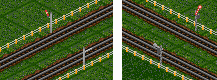
plantmanytrees, -Yp
It is a bit switch. To find out how that works, see Bit Switches, or simply add up the values of the options you want:
| Bit | Value | Meaning
|
| 0 | 1 | Allow adding trees to a tile
|
| 1 | 2 | Plant rectangular area with Ctrl
|
| 2 | 4 | Rectangular planting adds trees to tile
|
The first option allows you to plant trees on a tile which already has trees. However, currently this does not impress the local authority; for that you need to plant trees on empty tiles. Also, the new trees have to be fully grown (due to an internal restriction of TTD), so they cost more.
The second option allows you to plant a large rectangular area with trees. First, you plant a tree in one corner of the rectangle. Then you hold down Ctrl, and plant a tree in the opposite corner of the rectangle. Now all empty fields in the rectangle will be filled with trees. If the tree type is the same in both corners, the whole rectangle will be filled with that type of tree. If the tree types differ, the rectangle will be filled with random trees.
If you enable the third option, this rectangular planting will add trees to tiles which contain trees already, whereas otherwise it only plants on empty tiles.
This patch was contributed by Csaba Varga.
morehotkeys, -YH
Normally, hotkeys only work for the four railway track types, and the two orientations of roads. With this option, everything in the railway and road construction menu can be activated by hotkeys.
In addition, you get hotkeys for all display options, such as transparent building and station and town signs.
For the construction menu, keys 1 to 4 choose the track or road orientation as usual. The keys from 5 to the end of the top row of keys activate the other tools, and the key to the left of 1 (usually ` or ~) toggles the bulldozer on or off.
For the display options, t toggles transparency, and Shift-1 (!) to Shift-5 (usually %) to toggle the other display options.
Note that you can modify the hotkey list using the `ttdpttxt' mechanism, for more information see Custom in-game texts.
Note that the DOS versions of TTD have hardcoded keyboard mappings (which can be a little strange sometimes), while Windows versions follow the Windows keyboard layout. This may make it difficult to determine the key code to use for a certain key. To help with that, you can use the `ttdpttxt' mechanism to turn on the display of key codes to make your own hotkey list.
Or, you can use the enhanced keyboard mapping feature (see Enhanced Keyboard Mapping) to remap all keys in the DOS versions the way you like it....
This patch was contributed by Oskar Eisemuth.
morecurrencies, -XC
This switch adds more currencies to TTD. It adds the Hungarian Forint, Polish Zloty, Austrian Shilling, Belgian Franc, Danish Krone, Finnish Markka, Greek Drachma, Swiss Franc, Dutch Guilder, Italian Lira, Swedish Krona, Russian Rubel and, after 2002, the Euro. If you're using DM, FF or Pt as your currency in 2002, the currency is changed to the Euro and the national currencies become unavailable. This happens to the Forint in 2008 as well.
You can fully customize each of the new currencies, see Currency Entries.
This switch is a bit switch. To find out how that works, see Bit Switches, or simply add up the values of the options you want:
| Bit | Value | Meaning
|
| 0 | 1 | Currency symbol displayed always before number
|
| 1 | 2 | Currency symbol displayed always after number
|
| 2 | 4 | Do not introduce the Euro
|
| 3 | 8 | Always use comma to separate thousands
|
| 4 | 16 | Always use period to separate thousands
|
Bits 0 and 1 are of course mutually exclusive. If either is set, it applies to all currencies. The same is true for Bits 3 and 4.
This patch was contributed by Csaba Varga.
manualconvert, -Ym
If this switch is active, you can convert a piece of track to another type simply by building over it, instead of having to remove it first. Conversion of stations, depots, bridges and tunnels is also done by building a piece of track (not a station, depot etc.) over them.
For depots, if you convert the depot, any vehicles that are in the depot won't be converted. You'll have to replace the engines and wagons manually. You can't attach the old wagons to newly built trains either, because they would be of the wrong train class, and therefore unable to run on the new tracks.
This patch was contributed by Csaba Varga.
enhancegui, -YG
This switch makes some changes to the graphical user interface in TTD. For example,
it modifies the station construction menu if largerstations is active and shows
buttons for all 7 lengths and all 7 numbers of platforms. It also makes the depot
window slightly larger, to accomodate 14 wagons instead of just 10.
It is a bit switch. To find out how that works, see Bit Switches, or simply add up the values of the options you want:
| Bit | Value | Meaning
|
| 0 | 1 | (reserved, do not use)
|
| 1 | 2 | Make depot window even larger (18 wagons)
|
| 2 | 4 | Dragging a railway vehicle outside the depot window sells the vehicle
(i.e. acts as dragging to the trashcan)
|
| 3 | 8 | Show horizontal trashcan bar instead of the standard vertical one
|
The improved station construction menu and 14-wagon depot window are always activated, other bits are off by default.
This patch was contributed by Oskar Eisemuth.
moretownstats, -Yt
When active, this switch collects and displays information about how much cargo is accepted by stations belonging to a particular town. Normally, TTD counts and displays only how many passengers and how much mail is transported away from the town; it also counts how much food and water is delivered to it, but does not display this information anywhere. With this switch, you will know how many passengers and how much mail, goods, food, water, sweets and fizzy drinks (if applicable) have been transported to the city.
Other switches that enable collection (but not display) of the additional
statistics and other extended town data when turned on include
towngrowthlimit,
largertowns,
towngrowthratemode,
and bribe.
If the extended town data are enabled town populations are not limited to 65535.
This patch was contributed by Marcin Grzegorczyk.
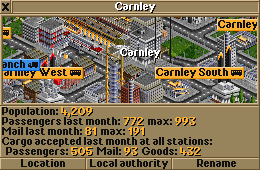
newagerating, -Ya
TTD's station ratings depend on the age of the last vehicle transporting the cargo in question. For trains, this only regards the last wagon, for all other vehicle types, it's the vehicle itself. The rating will be highest if the vehicle is less than a year old, and will be lowest three years later. However, it is unreasonable to expect players to replace their vehicles far more frequently that every three years, or even to just replace the last train wagon.
Therefore, with this switch active, the maximum rating is maintained for the first five years, then it slowly drops to the minimum, which it reaches at the age of 21 years.
This patch was contributed by Csaba Varga.
buildonslopes, -Yb
Normally, what you can build on slopes (sides of a mountain) is very limited, tracks and roads can only be parallel to the incline, not in any other direction.
With this switch, you will have more options for things to build on sloped tiles:
Note that it is always impossible to build on so-called "steep slopes", which have a height difference of two levels between opposite corners. You can only build on slopes that have a height difference of at most one level. You also can't change the altitude of a tile corner on which there is a foundation.
One very useful side effect of this is that you can now build stations over several
height levels.
See the picture below for an example.
Simply place for example
one or more train station platforms, then add other platforms or other station
facilities next to it, on the higher level. Adding more platforms of course only
works if largerstations is on, and only if the lengths and orientations match.
The AI players would be of course unable to connect tracks and roads built on foundations properly, so they're not allowed to use this feature, except for placing their HQs and airports.
This patch was contributed by Marcin Grzegorczyk.
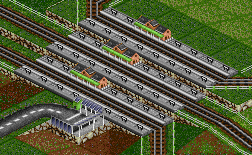
experimentalfeatures, -XF
This switch enables some features of the patch that are still considered to be under development.
It is a bit switch. To find out how that works, see Bit Switches, or simply add up the values of the options you want. For TTDPatch version 2.0, you have the options:
| Bit | Value | Meaning
|
| 0 | 1 | Slow down trains before road/rail crossings to avoid collisions
|
| 1 | 2 | Very experimental support for new stations
(don't ask how it works yet!)
|
| 2 | 4 | The TTD newspaper will be in colour starting from the year 2000
|
| 3 | 8 | Vehicle orders can be shared or copied. See below.
|
| 4 | 16 | A news message appears when a crashed train is cleared (with morenews on)
|
| 5 | 32 | Colour-code vehicle profits in the vehicle list, see below.
|
| 6 | 64 | Don't show company finances on every January 1st.
|
This switch is not enabled by default or by the -a command line switch,
because the features are still under development.
How to use shared/copied vehicle orders:
You can link as many vehicles as you want this way. For example, you can give the orders normally to the first vehicle of the route, then make the others share its schedule, so if you want to change the route later, you have to do it only once. You can tell wheter a schedule is shared by looking at the last entry. If it's "End of orders", it's a normal schedule. However, if it's "End of shared orders", it applies to more vehicles. Shared orders use only one entry in the internal order list, no matter how many vehicles are using it. This means it's a way to conserve the limited number of orders (5000) if you have many vehicles.
If you do these steps without holding Ctrl, the orders will simply be copied instead of sharing them. Then you can change the orders of all vehicles independently.
You can reset a schedule (to clear it or to make it unshared) this way:
This way you can unlink a vehicle if you don't want it to use the shared schedule any more.
Unfortunately, this feature won't work in multiplayer, except copying orders without Ctrl.
Colour-coded vehicle profits: TTD uses last year's profits of the least profitable vehicle that is at least two years old to determine part of the performance score. If the profit of the least profitable vehicle is the equivalent of 20,000 pounds or more, you get the full score. If it is zero or less, you get no score for it, and in between you get the appropriate partial score. With this feature, you can quickly see if you have any vehicles that cause you to not have a perfect score. Their profit will show up in red if negative, or in yellow if below 10,000 pounds. Vehicles with 10,000 pounds of profit in the last year will be green. Vehicles that are less than two years old will not be rated, and will be in black. This means that if any of your vehicles in the four categories is yellow or red, your score will suffer.
The first two features were contributed by Oskar Eisemuth, the others by Csaba Varga.
tracktypecostdiff, -Yc
Normally, all types of track cost the same in TTD. This does not take into account that more sophisticated track is realistically expected to be more expensive.
With this switch, different types will have different costs. Regular railroad will have the same price as before, but more sophisticated track types will be increasingly more expensive.
This patch was contributed by Oskar Eisemuth.
planespeed, -YP
TTD normally divides a plane's speed by four when calculating how fast it should move across the map. Thus it will seem really slow when compared to fast trains for example.
With this switch, planes move as fast as their speed indicates. This means that they will be extremely fast in the game, and are difficult to click on with the mouse unless the game is paused. However, they do have a speed consistent with all other vehicle types.
This does not affect anything except motion across the map, for example the speed used in the station ratings calculation is still calculated differently for planes.
buildoncoasts, -YC
This switch allows you to build items on coastal tiles that are partly land and partly water. Normally you would have to bulldoze the tile, and quickly build on it before the water returns. If this switch is active, you don't have to manually bulldoze first.
This option is most useful when the buildonslopes switch is also enabled
(see Build on Slopes), as it gives you a much wider choice of things that
can be built on sloped tiles like the coastal ones.
Note that you still have to pay for the cost of bulldozing, so building on the tiles can still be very expensive if more than one edge has water on it.
This patch was contributed by Marcin Grzegorczyk.
fastwagonsell, -Yw
It can be very annoying to have to sell each wagon individually when selling a train. With this switch, all you have to do is hold down Ctrl, sell the engine, and the entire train will be sold.
Alternatively, you can sell all wagons behind a certain wagon, by selling that wagon and holding down Ctrl as well.
This patch was contributed by Csaba Varga.
newrvcrash, -Yr
This switch changes what happens when a road vehicle collides with a train. It has two possible settings:
This patch was contributed by Csaba Varga.
stableindustry, -Xi
Sometimes, industries can reduce their production and close down. This happens even if a stable economy is selected in the difficulty settings.
With this switch enabled, industries will never close down with a stable economy, as in the original Transport Tycoon.
This patch was contributed by Csaba Varga.
Cht: Money <number>
Sets your cash to the number, given in British pounds. For example, with Cht: Money 1000000 as a sign name you will have the equivalent of one million pounds in your selected currency.
Cht: Year <number>
Changes the current year, and this works in both directions. Now you can start your game in the year 2030 with all the Maglevs available, or change it back from 2070 when time stops. The year can be anything from 1921 to 65535 if "eternalgame" is on. Without eternalgame, the years can go only to 2098, although years after 2072 or so won't work correctly because time stops somewhere around then. This cheat really sets the date to December 31st of the previous year, so that the year change can be processed properly. That's also the reason why you can't jump to the year 1920, because the date would have to be set to Dec 31st 1919, which doesn't exist in the game.
Note that when jumping to a year before 1930, you must have "generalfixes" on. Otherwise, the game will lock up when a town tries to build another house.
The cheat also updates the age and service intervals of all vehicles, lest all of your vehicles go to the depot after increasing the year, because they have suddenly aged many years in a few seconds.
It's a good idea to activate the "persistent engines" patch, or you might run out of engines to buy, because their lifetimes are too short by default.
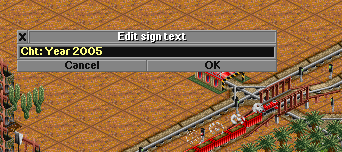
Cht: Tracks <to> [<from>] [?]
This will change all the tracks that are currently the from type (or
all if from is not given) to the new type set by to.
The types are 0=Railroad, 1=Monorail (or Electrified if enabled), 2=Maglev.
So, for example Cht: Tracks 2 1 will change all your monorail tracks to maglevs, or Cht: Tracks 1 would convert everything to monorail.
Also, all the trains of that type will be fitted with a new undercarriage and a new drive system, otherwise they would get stuck because they are on the wrong track. However, if you're using electrified railways (see Electrified Railways), Cht: Tracks 1 0 will convert all regular track to electric, but it will not convert steam or diesel engines.
If the "CheatsCost" switch is enabled, this cheat will calculate the cost for all replacements, and deduct it from your bank account. Use the question mark to inquire about the cost without actually activating the cheat.
Cht: Used
Use this to show which of the sign cheats have been used in the current game. It is intended for competitions where the use of some of the sign cheats is not allowed. The value is a hexadecimal bit mask of the following hexadecimal bit values:
| Bit | Value | Cheat
|
| 0 | 1 | Money
|
| 1 | 2 | Year
|
| 2 | 4 | Tracks
|
| 3 | 8 | Used
|
| 4 | 10 | OwnCrossing
|
| 5 | 20 | Renew
|
| 6 | 40 | DumpMemory (obsolete)
|
| 7 | 80 | AllNonStop
|
| 8 | 100 | NoNonStop
|
| 9 | 200 | ServInt
|
| 10 | 400 | ResetStation
|
| 11 | 800 | AllVehicles (used to be AllEngines)
|
| 12 | 1000 | ClearPreSig
|
| 13 | 2000 | RemoveVehicles (used to be RemoveEngines)
|
| 14 | 4000 | ClearGhosts
|
| 15 | 8000 | PlayerID
|
| 16 | 10000 | NoUnload
|
| 17 | 20000 | ResetVehicles
|
| 18 | 40000 | Semaphores
|
| 19 | 80000 | PlantTrees
|
| 20 | 100000 | Subsidy
|
| 21 | 200000 | Debugger
|
| 22 | 400000 | Graphics
|
The value 8 for the "used" cheat will always be present because you have to use the cheat to see it, after all.
Cht: OwnCrossing
There's a bug in TTD that causes road/railroad crossing to be taken over by the local authorities when you import a savegame to the scenario editor, and then load it back as a savegame, and possibly in other circumstances too.
If this bug occurs, you'll be able to remove the road instead of the tracks. The tracks will belong to the city and can't be removed. The road will belong to the city as well.
Using this cheat, all these crossings will be given back to you, so that you can remove the tracks, but not the road (unless that really was yours, which shouldn't have triggered the bug).
If you've already removed the road, you have to put it back there for this to work. This cheat only affects crossings, nothing else.
The tracks will always be owned by the first human player, because ownership information is lost completely and the correct owner can't be determined. A future version of the patch will fix this by tracing back the railroad track to determine whose tracks they really are.
Cht: Renew [?]
It would be a good idea to frequently renew the rolling stock, mostly train cars, because the age of them affects station ratings. (It's the difference between the year they are built and the current year that counts). Problem is that, like upgrading all tracks, it is a very tedious process. This cheat will make this easier. It changes the age of all carriages to zero, sets the "year built" to the current year and updates their value to the current price.
Note that this does not affect the engines, only the carriages. To renew the engines you will still have to send them to a depot.
If the "CheatsCost" switch is enabled, this cheat will calculate the cost for all replacements, and deduct it from your bank account. Use the question mark to inquire about the cost without actually activating the cheat.
Cht: NoNonStop
With this you can remove the "non-stop" flag from the commands of all your
trains. It is useful to do when you turn on the new non-stop handling for
example.
Cht: AllNonStop
This switch sets all your trains' commands to "non-stop", when you don't want to use the new non-stop handling anymore.
Cht: ServInt <days> [<types> [<ai>]]
With this cheat you can modify the service interval of all existing vehicles. It will be set to the given number of days.
If you specify a second number, it will determine what type of vehicle you want to change. It is a bit-coded number, with the bits meaning the following:
| Bit | Value | Vehicle type
|
| 0 | 1 | Trains
|
| 1 | 2 | Road Vehicles
|
| 2 | 4 | Ships
|
| 3 | 8 | Aircraft
|
Simply add all the values for the types of vehicles that you want to modify.
If you specify a third number (and it is not zero), you can tell TTDPatch to modify the other players' vehicles as well.
Cht: ResetStation [<all>]
This sign cheat allows you to reset all stations to a state as if they had just been built. This can be useful if some industries close down and the cargo rating drops to zero, in which case this type of cargo will be removed from the list, along with all others. It is also useful in conjunction with the "selectgoods" patch, because it also resets which goods will appear at a station, in case you want to rearrange the goods across different stations.
If you just name the sign Cht: Resetstation, then only your stations will be affected. However, if you add a "1", as in Cht: Resetstation 1, then it will affect all stations, even those owned by computer players.
Cht: AllVehicles
Cht: AllEngines (obsolete)
This will make it possible to purchase all engines and wagons available in the current climate, if they have been introduced already. Use this if you can't buy some engines because you forgot to turn on persistent engines.
Note that it will not make engines available, which have yet to be introduced. If you
want to have those engines too, you need to use the Year cheat first. The AllVehicles
cheat is only intended for games in which some of the engines have expired already,
not for those where they aren't available yet.
Cht: RemoveVehicles
Cht: RemoveEngines (obsolete)
As the name would imply, this cheat is the exact opposite to the above cheat. Namely, it removes all engines from the list of engines that can be bought, unless the engine is currently in use. In that respect, it behaves a lot like persistent engines, except that the engines are removed immediately and not only after they get too old. Train wagons are not affected.
Those engines that have yet to be introduced will be available at the time of their introduction, that is, the RemoveVehicles cheat does not affect an engine until it was available for purchasing.
Cht: ResetVehicles
Cht: ReloadEngines (obsolete)
Normally, it is not possible to change a vehicle's date of introduction or the climates in which it is available in a savegame. All such changes (for example using TTD Alter or the "newships" switch) are only available after starting a new game.
With this sign cheat however, all values are reloaded and all modifications are included in the current game. Note that this may also cause some vehicle types, including those you're using, to disappear from the market. The vehicles you have already bought are safe, though. If a vehicle type disappears that you would like to be available, you may use the Cht: AllVehicles cheat to make all vehicle types available. This, however, will not work if an alternative vehicle set (see New Graphics), in which your vehicle type does not exist, is loaded.
Reliabilities, introduction dates, names and other properties of vehicle types are also reset when you use this cheat.
Cht: ClearPreSig [<all>]
This clears pre-signal setups and reverts signals back to the normal type. If <all> is specified and non-zero, the cheat clears all pre-signals, even manual ones. Otherwise, only automatic pre-signals will be reset.
Note that if automatic pre-signals are enabled, the signals will be converted to pre-signals again when a train enters the corresponding block, as long as they are a valid automatic pre-signal block (see Pre-signals (detailed)).
Cht: ClearGhosts
Previous versions of TTDPatch (before 1.8) had a bug that sometimes caused the creation of "ghost" train stations. These are either station buildings on the map without an associated station sign, or station signs where the train station did not exist.
This cheat will correct both problems. The first case will be converted to plain tracks, so that these can then be removed. (They can't be removed automatically in case there are trains on these tiles.) The second case will lose the train facility, and turn into a gray sign that eventually disappears, if the train terminal was the only facility.
Note: Always save your game before using this cheat, because it might remove stations that look alright, but are in fact ghost stations. If you find a station gets removed that you want to keep, place an additional facility right next to it (e. g. a bus station), and re-build the station after using this cheat.
Cht: PlayerID <num> [<temp>]
Note: this sign cheat has largely been superceded by the new subsidiary management.
You can switch control to a different company or player using this cheat. The parameter is the number of the player, ranging from 0 to 7. If the company doesn't exist or is another human player (in multiplayer games), the cheat will fail, otherwise you now own a different company.
If you specify <temp> and it is not zero, the company is only taken over temporarily, and you can switch back using Cht: PlayerID with no parameters, or with your original company ID as the number. Without <temp>, the takeover is permanent, which means that the computer AI will take over your old company.
If you intend to switch back to your old company, make sure that you do a temporary takeover, otherwise the computer may shut down several of your lines, or waste money by building some of its brain-damaged routes.
You may also find it easier to switch temporarily by using the subsidiary management (see Subsidiaries).
Cht: NoUnload
When taking over an AI company using either Cht: PlayerID or the subsidiary management, you will notice that most of their services use the unload command on all orders, even though it is unnecessary. As a result, all of these services will be considered to be feeder services (see Feeder Service) if you have enabled them. This means that they will not earn any money and no cargo will ever reach a final destination.
This cheat will remove the unload command from all orders, so that you can take over an AI company without having to go through all orders manually.
Cht: Semaphores 0/1 [tracktype]
This sets all signals to be light signals (if 0) or semaphores (if 1). Optionally you can restrict the conversion to the given track type. Note that to see the semaphores, the "semaphores" option has to be turned on and you must have loaded the semaphore graphics.
Cht: PlantTrees [<SizeX>] [<SizeY>] [<type>]
This cheat plants a rectangular area of trees around the location of the sign. It is especially useful to plant trees for a lumber mill, just place a sign with Cht: PlantTrees on top of the lumber mill.
If SizeX is given, it specifies the size of the rectangle in the X direction. By default the size is just right to cover the range of a lumber mill (40 squares).
If SizeY is given, it specifies the size of the rectangle in the Y direction. If not given, the size in Y direction is the same size as in X direction.
Finally, you can specify the tree type as a number from 0 to the maximum tree type. If not given, random trees are planted.
Cht: RemoveHQ
This cheat removes your company headquarters. For example this is useful if you want to move the headquarters to a different city, or if they're in the way of your railway tracks.
Cht: Climate <newclimate>
This cheat switches to the given climate: 0=temperate, 1=arctic, 2=tropical, 3=toyland.
It is somewhat dangerous, because it means that the existing industries and vehicles are for the wrong climate. This means that some of your transport routes may be useless and need to be adjusted. It is advisable to keep a backup savegame from before using this sign cheat in case something goes wrong.
This cheat may be useful for example to buy vehicles that are not normally available in the current climate.
Note that the climate-specific graphics will not change until you save and reload the game.
Cht: Subsidy
This cheat forces the offer of a new random subsidy. Note that it may fail if TTD is unable to find any sources with cargo in need of a subsidy, or if the maximum of 8 subsidies has been reached.
Cht: Debugger
This cheat shows the window of TTD's built-in debugger. It shows some statistics about the game, for example how much memory is used, how many vehicles there are and other things.
Cht: Graphics [<ID> [0/1]]
With this cheat, you can selectively activate or deactivate specific new .grf files.
If entered without any parameters, all graphics will be activated if they can.
If you say "Cht: Graphics <ID> [0/1]", you can activate or deactivate a specific graphics file, identified by the GRFID. If you leave off the 0 or 1, it will be activated by default. To find out the right graphics IDs for a certain .grf file, you can use Shadow's Graphics Manager, available from http://www.ttdpatch.de.vu/. Note that for these activations/deactivations to be permanent, "saveoptionaldata" must be on.
Note also that you can't for example activate the tempset if the dbset is already active, because these two sets are mutually exclusive. You have to turn off the first one, then turn on the second one if you want to switch.
Here's a list of some GRFIDs:
Finally, this switch forces the vehicle list to be reset, so that new vehicles are available and have the correct stats. In effect, this is the same as Cht: ResetVehicles. See the description of that cheat for more details.
Usually, making an efficient station where all trains can go to all platforms is very difficult, because if all platforms are in use, the trains randomly choose one and wait till the train occupying it leaves. If that train is set to "full load" this may take a long time, the station will be blocked until that train leaves. One workaround is to have "overflow" tracks, where the train goes if everything is full. While this works, it makes the train run all the time while waiting for a platform. This is very inefficient, and it takes up a lot of space which might be an issue especially for a city station.
These new pre-signals on the other hand work similar to what is also often called "home signals" or "entrance signals". The regular TTD signals are called "block signals", because they always indicate whether the block protected by them is occupied, no matter where the train actually wants to go.
TTDPatch's pre-signals work differently, more like most real-life station signals, or similar to advance signals. They state whether a train can enter a station by looking if there is a free platform, not just by looking if the entrance is clear.
The basic principle is very simple: a pre-signal shows a green light if, and only if, there is a green exit from the block behind it (or if there are no exits at all). In the context of a station entrance, for example, this means that trains will enter the entrance only when there is at least one platform it can go to. If there isn't, it will wait in front of the pre-signal, and not block the station entrance.
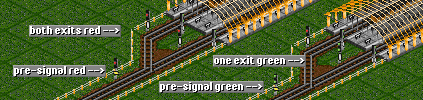
This simple principle can allow you to build very efficient yet simple stations, but first you have to understand how. The next few sections attempt to explain in more detail what the different types of signals are.
With these signals, is quite easy to have a small and yet very efficient station without the usual problems you get with busy stations, because now trains will be able to queue in front of a station, and get to the platforms in the order that they've arrived in.
Note that pre-signals do not change where a train goes, only when. You cannot use them to tell trains where to go, instead you should use waypoints for that (see New Non-stop Handling).
In the context of pre-signals, there are four different types of signals: plain signals, pre-signals, pre-signal exits, and combo signals.
| Type | Appearance | Function
|
| Plain signals | Single green light, no bar | normal
|
| Pre-signals | Double green light, horizontal yellow bar | Entrance to a pre-signal block
|
| Exits | Double green light, vertical gray bar | Exit from a pre-signal block
|
| Combo | Double green light, vertical yellow bar | Between two pre-signal blocks
|
Pre-signals and combo signals are the only signals that really behave differently, the exits only affect how the other signals behave.
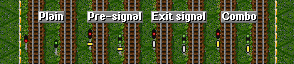
Pre-signals will show a green light if any of the exits or combo signals behind it show green. They prevent a train from entering a block unless it can leave it quickly. A pre-signal with no exit signals will behave as a normal signal, to allow the use of two-way pre-signals (where the other direction would usually lead to a route serviced by one train only). The pre-signal only considers actual exit signals when deciding whether to go green or remain red, even if there are other, non-exit signals that would allow a train to leave the block. Pre-signals can be either one-way or two-way signals, but will usually be one-ways.
Pre-signal exits are signals leading away from the pre-signal block, and should normally be two-way signals, so as to give the train a choice. If they were one-way signals, the trains would all attempt to go to what they consider the "best" choice, even if there are other green signals they could go to as well. Therefore, an exit will in almost all cases have to be a two-way signal.
Combo signals are a combination of both pre-signals and exits. They serve as exit to a prior pre-signal, but are a pre-signal themselves. As such, they are to be placed between two pre-signal blocks, so that trains can go to the additional exits behind a combo signal if they need to, but the blocks are still separate and allow a train in each block. Please see below for a specific example. Note that combo signals are not as useful as they should be, because they currently have some limitations. In the case where all exits are blocked, and trains are waiting at both pre-signal blocks, both trains will start moving when one exit becomes available, but of course there is only one platform, so one train ends up waiting in the pre-signal block.
Unlike pre-signals, combo signals with no exit signals always show red.
With automatic pre-signal setups enabled (see Pre-signals), all signal blocks that satisfy the following conditions will be converted to pre-signal blocks:
If these three conditions are met, the one-way signals from condition 1 will be turned into a pre-signal, and the two-way signal(s) satisfying condition 3 will be turned into pre-signal exits. All other signals are left as they are, in particular, non-conforming two-way signals will not be converted.
(sometimes called "roro" or roll on/roll off station)
Such a station should be built like this:
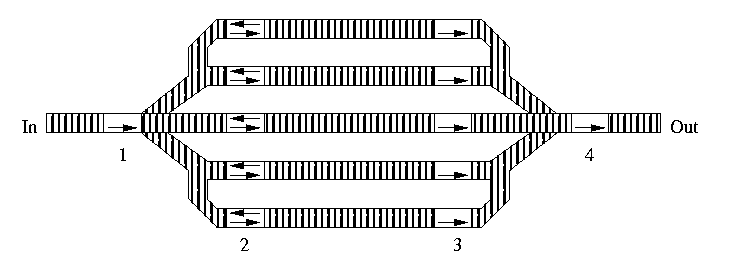
There are four sets of signals involved, labelled 1 to 4. Signal 1 is the pre-signal, and only go green if any of the exit signals 2 are green. Signals 3 are those letting the trains out of the station. Finally, signal 4 terminates the exit block.
The following conditions have to be met for this to qualify for automatic conversion. Note that if you convert it manually, it will work like you might expect.
Also, even though not shown in the figure,
If conditions two and three are only met for part of the signals, it will work neither as it should, nor as it did before pre-signals. Those signals will not be converted to exits, so the pre-signal will not consider them when deciding to go green.
To repair a signal stuck at red, you'll have to modify its pre-signal setup with the Ctrl key, or remove and replace it.
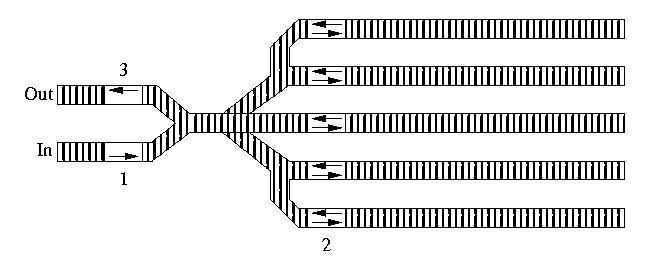
This very compact layout of a station is often useful in a city, where there is not enough space for a full roro station. Here, the same conditions apply as in the previous case, and there can also be more than one of signals 1 and 3.
You can even combine both types of stations, i.e. have some of the platforms go through and others end.
These improved overflow loops are useful at the entrance of a busy station, where you need to prevent traffic backup into the main line.
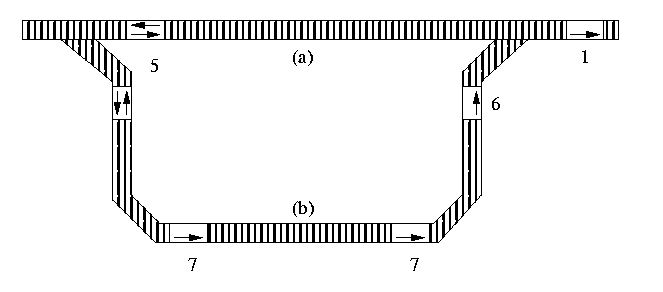
Here, (a) is the usual way to the station, and it's used if there's no train waiting. Make sure that your longest train will fit entirely on (a) to make this work. If there is already a train waiting, other trains will take route (b) and line up at signal 6. You can make (b) as long as you like. It should have a few one-way signals 7 along the way to allow several trains to line up.
A few important points:
This has a few advantages over a regular overflow loop. First, the trains only have to use it once before lining up at signal 6 and don't continue to loop until a platform is available. Also, even if the station is full, at least one more train will not have to use it, only if two or more trains are waiting will it be used. Third, one of the waiting trains will enter the station as soon as a platform is free, without having to complete a loop because it already is waiting at the station entrance. And lastly, the trains will be served in the order that they arrive in. In an overflow loop, there is no guarantee that a train will not loop indefinitely at a very busy station, just because newly arriving trains steal into the platforms.
Many aspects of pre-signalling can be
confusing to those new to it. To help with the understanding,
I have created a demonstration with a small savegame that you can
download.
Please make sure that it won't
overwrite one of your savegames. The save file is trt56.sv1, so if you
already have that file, make a copy of it. It features both a through
station and a terminus station, and has two improved overflow loops.
I encourage you to test this savegame with the pre-signal switch disabled, too, so you can see the difference it makes, and try different numbers of trains (as low as 7 maybe) by sending them to the depot, and more or fewer platforms at both stations.
Here's the executive summary:
newgrf in the TTD directory
.zip format, unzip them. Make sure the .grf files
go into the newgrf folder
.grf files to either newgrf.cfg (DOS) or
newgrfw.cfg (Windows) in the TTD folder. Create that file if it doesn't exist.
Here is an example of a newgrfw.cfg file, in this case for the Windows version of TTD.
For the DOS version, simply remove the "W" or "w" at the end of each name.
newgrf/newshipsw.grf
newgrf/cargosetw.grf
newgrf/dbsetw.grf
newgrf/tempsetw.grf
newgrf/signalsw.grf
newgrf/elrailsw.grf
newgrf/arcticsetw.grf
newgrf/trkfoundw.grf
You can temporarily disable a graphics file by putting a hash mark, "#" in front of it in the configuration file. Also, some graphics files allow you to modify some of their options by putting numbers behind the graphics file. For more information, refer to the readme file that should have come with the specific graphics file.
For example, the DB set normally replaces all railway crossings with versions that have
gates instead of lights. If you don't want that, you can use the line
newgrf/dbsetw.grf 2
For other possibilities, refer to the readme files of each graphics file.
This section explains how to deal with the multitude of graphics files, some of them being mutually exclusive.
Most of the new graphics sets are designed for a certain climate. They will only work in the right climate, for example you can't use the DB set in anything but the temperate climate. The DB set is also incompatible with the Temperate set ("tempset"), which means only one of the two can be active at the same time.
The most important switches that control activation and automatic selection of graphics are "loadallgraphics" and "saveoptionaldata".
If "loadallgraphics" is off (which is the default), only those graphics are loaded that
were loaded when the game was saved. If you later add new .grf files to
newgrf.cfg, those graphics won't be loaded in your existing savegames. The reason
for this is that the new graphics also change the vehicle stats, and could lead to an
inconsistent state of your vehicles. If you set the switch to on, all new graphics
will be loaded when you load an existing savegame. This switch only applies to
new graphics, so it should better be called "loadnewgraphics", but for
historical reasons it isn't.
The "saveoptionaldata" switch allows TTDPatch to actually save the information about
active graphics with your savegames. It is recommended that you always leave it turned
on. If turned off, TTDPatch doesn't know which graphics are old and which ones are new,
so it assumes all of them are new. In that case, "loadallgraphics" applies to all
entries in the newgrf.cfg file.
Additionally, you can use the Cht: Graphics sign cheat to activate or deactivate individual graphics files. See the description of that cheat to find out how it works.
The following errors can occur when trying to load new graphics. Each error describes the file that caused the error, and the place within the file where the error occured (the so-called "sprite number").
newgrf(w).cfg.
newgrf(w).cfg to get below that limit.
newgrf folder, and that you haven't made a typo when
entering it in newgrf(w).cfg.
newgrf(w).cfg. If you have one or more numbers after the
filename in newgrf(w).cfg, remove all numbers and try again. If the error still
occurs, it's a problem in the graphics file, and needs to be fixed by the author.
TTDPatch version 2.0 introduced a host of new switches that control how fast and when towns can grow, thanks to Marcin Grzegorczyk who wrote the feature. This section attempts to explain all the details and intricacies about town growth, first by explaining how it works in regular TTD, and then how the new switches modify this.
There are two sets of town growth switches. The first one makes small modifications, but keeps TTD's general town growth algorithm as explained in the next section. The second one allows you to fine-tune the town growth conditions and rates.
The first set includes towngrowthlimit and largertowns.
towngrowthlimit sets (roughly) the maximum radius to
which towns can grow. largertowns allows a certain fraction of towns to grow
twice as fast. For example, largertowns 5 doubles the growth rate of every
fifth city, but the selection of cities for which this applies is random.
If largertowns is enabled, towngrowthlimit affects only towns
with doubled growth rate; if largertowns is disabled,
towngrowthlimit affects all towns.
Both these switches also apply some small modifications and bug fixes that are explained
in the next section.
The rate at which towns grow is controlled by the setting of towngrowthratemode:
To fully understand how both the improved and custom town growth rates work, read the following sections.
The executive summary for modes 0 and 1: Town growth is boosted by activity
(loading or unloading) at stations in the town's transport zone, the size
of which depends on the number of buildings in the town. Up to 4 (in mode 0)
or 5 (in mode 1) stations can contribute to the growth. If the "Fund new buildings"
action was carried out in the town within the last 3 months, stations either
do not affect the growth rate (mode 0) or affect it weakly (mode 1). The
largertowns option does not double the growth rate of towns which have
no active stations in their transport zones.
For mode 2, there is no executive summary. All switches whose name begins with "towngrowthrate" or "tgr" are used to control and fine-tune town growth rate. See the New Town Growth Switches for the detailed description.
This is very technical, and only required if you want to fine-tune your town growth. Otherwise, you can skip over this and the next section.
The basic time unit in TTD is a "tick". In the following, it will be used to describe how often something happens. A tick of the simulation engine takes ca. 27 ms, if your computer is fast enough, otherwise it takes as long as necessary. One TTD day is ca. 74 ticks, which is about 2 seconds of real time on fast enough computers.
The "expansion state" of a town is determined by two fields in town
structure: bit 0 in the word at the offset 0x12 (I'll call it the
growth_flag) and the byte at 0x0A (idle_countdown):
growth_flag | idle_countdown | state
|
| 0 | any | blocked
|
| 1 | 0 | expanding
|
| 1 | nonzero | idle
|
Town status update (including expansion) is performed on every tick in a
round-robin fashion; since the town array can hold 70 entries, the main
town status update procedure is called every 70 ticks for each town. If
the town is blocked, nothing happens. If it's idle, idle_countdown is
decremented. If it's expanding, an attempt to place a new building or a
piece of road (or a bridge) is taken; if it succeeds, the expansion
state is changed to idle by setting idle_countdown to the byte at 0x39,
from now on referred to as growth_delay (extension of an existing road usually
doesn't change the state to idle). Therefore, growth_delay
determines how often the town will be in the expanding state, and thus
is the inverse growth rate of the town. Smaller values of growth_delay
mean faster growth.
growth_delay is reset each month, and depends on the number of "active"
stations within town's transport zone as follows:
| number of | growth_delay
| ||
| "active" stations | normal | funded[1] | funded[2]
|
| 0 | 160 [3] | 60 | 60
|
| 1 | 210 | 60 | 60
|
| 2 | 150 | 60 | 60
|
| 3 | 110 | 60 | 50
|
| 4 | 80 | 60 | 40
|
| 5 or more | 11 [4] | 60 | 30
|
Footnotes:
| [1] | When a town building fund is active (i.e., up to 3 months after
using the "Fund new buildings" option).
|
| [2] | When a town building fund is active and "towngrowthratemode" is set to 1.
|
| [3] | In this case the town is blocked with a 11/12 probability,
so the effective mean growth_delay is 1920.
|
| [4] | This is a bug in TTD (array overrun).
TTDPatch now fixes this if any of "generalfixes", "towngrowthratemode" or "towngrowthlimit" is
active. If "towngrowthratemode" is 0 or off, growth_delay is set to 80
(which seems to be the original programmer's intention); if "towngrowthratemode" is 1, it's set to 55.
|
Apart from the random blocking in the case [3], town growth is also blocked:
The switches townminpopulationsnow and townminpopulationdesert
may be used to prevent blocking of towns with population less than some threshold,
so they get a chance to grow enough to accept food.
If "largertowns" is active, growth_delay is halved for selected towns,
making them grow twice as fast
(except in the case [3] above, so transport is still necessary to
make towns grow; this is different if "towngrowthratemode" is 2,
as explained in the next section).
A station is "active" if any cargo has been picked up or accepted there within the last 50 days. The type of cargo is irrelevant, so if there's a coal mine in the middle of a town and you're picking up coal there, it will contribute to the growth of the town. This also means that many single-facility stations make a town grow faster than one multi-facility station, as long as they're serviced regularly.
The town's transport zone is a circular area around the town's central tile. Its radius (in tiles) is a function of the number of town buildings as follows:
| number of town buildings | radius of transport zone
|
| 0-3 | 2
|
| 4-7 | 4
|
| 8-11 | 5
|
| 12-15 | 6
|
| 16-19 | 7
|
| 20-35 | 8
|
| 36-71 | 9
|
| 72 or more | 0
|
Notice the last row. If there are more than 71 town buildings, the transport zone vanishes and stations no longer contribute to the growth. However, if "towngrowthlimit" is enabled, TTDPatch changes this by extrapolating the function for larger values.
Also note that the internal number of buildings may be incorrect in games save under old versions of TTDPatch or without TTDPatch, due to the bugs mentioned in General Fixes. However, this is not a big problem since TTDPatch recalculates these numbers (and populations) if the extended town data are enabled (see More Town Statistics) and the game without those data is loaded, and all the new town growth switches do enable the extended town data.
The function called if a town is in the expanding state starts by searching for a piece of road in the vicinity of town's centre. If no road is found, an attempt is made to create it. If a road piece is found, the function randomly `walks' along the roads trying to find a place to create a new house, or possibly branch out a new street or extend an existing one. Normally, this walk is limited to 20 steps (where a tunnel counts as one step), which limits the maximum possible extents of a town. The "towngrowthlimit" switch modifies this value.
Regardless of all the town growth processing mentioned above, each town
building's status is updated periodically (every 256 ticks).
This includes construction progress and "production" of passengers and
mail. If the town the building belongs to is not blocked, this also
includes destroying the building (and, with 61/64 probability,
immediately building a new one in its place) at random intervals. This process
is not controlled by growth_delay or any of the new town growth switches,
althought is does indirectly affect the growth of a town.
This section describes the switches that apply in "towngrowthratemode 2". They fine tune and control every detail of town growth.
As described in the previous section, TTD internally uses an inverse growth rate, i.e. the number of 70-tick time units between attempts to build a new house. However, the enhanced rate calculation uses a direct growth rate, defined as the average number of new town buildings per 38400 time units, which is approximately 100 years. At the end of calculations this rate is converted to the inverse growth rate. If the inverse growth rate is greater than 255, it's reduced and town growth is blocked randomly to have the same effect on the average.
For comparison, with "towngrowthratemode 0" (TTD's original calculation), the rates are:
| number of | average rate
|
| active stations | (new houses per 100 years)
|
| 0 | 20
|
| 1 | 182
|
| 2 | 256
|
| 3 | 349
|
| 4 | 480
|
or, if a building fund is active, the rate is fixed at 640 new houses per century. These rates are as they're normally in TTD, except that a bug with 5 or more stations (see the previous section) is fixed.
For the new growth rate calculation,
we have the maximum and minimum rate, the towngrowthratemin and
towngrowthratemax switches. Let ratediff be the difference between the
maximum and the minimum, i.e.
ratediff = towngrowthratemax - towngrowthratemin
Then the base rate delta multiplier (BRDM) is calculated as follows:
  BRDM = (AS*ASW + PO*POW + MO*MOW + PI*PIW + MI*MIW + GI*GIW + FI*FIW + WI*WIW + SI*SIW + DI*DIW)
                / (ASW + POW + MOW + PIW + MIW + GIW + FIW + WIW + SIW + DIW)
where the two-letter abbreviations represent growth boost components (explained in detail later in this message) depending on, respectively:
| AS | the number of active stations
|
| PO | percentage of passengers transported (`passengers out')
|
| MO | percentage of mail transported (`mail out')
|
| PI | incoming passengers (`passengers in')
|
| MI | incoming mail (you get the picture...)
|
| GI | incoming goods
|
| FI | incoming food
|
| WI | incoming water
|
| SI | incoming sweets/candy
|
| DI | incoming fizzy drinks
|
Each component is a number between 0 and 1, so the result (BRDM) is also between 0 and 1. The rest are weighting factors, represented by the following settings in the configuration file:
| ASW | tgractstationsweight
|
| POW | tgrpassoutweight
|
| MOW | tgrmailoutweight
|
| PIW | tgrpassinweight
|
| MIW | tgrmailinweight
|
| GIW | tgrgoodsinweight
|
| FIW | tgrfoodinweight
|
| WIW | tgrwaterinweight
|
| SIW | tgrsweetsinweight
|
| DIW | tgrfizzydrinksinweight
|
The higher the weighting factor for some component is relative to the
other weighting factors, the more influence the asociated growth boost
component has on the final growth rate. Note that it's the relation
betwen weighting factors that matters; for instance, if all the other
weighting factors are zero, the following set
  tgractstationsweight = 10
  tgrpassoutweight = 5
yields exactly the same results as
  tgractstationsweight = 2
  tgrpassoutweight = 1
The growth boost components are calculated as follows:
tgractstationsweight is the
only nonzero weighting factor, then the default values,
tgractstations=10 and tgractstationexist=5 result in an approximation of
the standard TTD behaviour. Note that tgractstationexist can be negative.
tgrgoodsinoptim=20, then a town with
population of 400 needs (400/20)*2 = 40 crates of goods each month; more
goods will be still accepted but will not contribute to the growth of
the town.
An additional calculation is done for towns in snow and desert areas.
It is presumed that towns above the snow line (or in desert) need some
minimum food to grow at all. This is defined via tgrfoodinmin, again
as population per 2 tonnes of food. Before FI is calculated, RFI = (P*2)/tgrfoodinmin is subtracted from FILM (which is, remember, the
number of tonnes of food `in' last month); if the result is negative,
the town will not grow at all. Similarly, RWI = (P*2)/tgrwaterinmin is
subtracted from WILM for towns in desert.
The base rate delta multiplier is then used to
calculate the rate delta multiplier:
RDM = BRDM * ((NTB / tgrtownsizebase) * TSF) + (1 - TSF))
where NTB is the number of buildings in the town and TSF=tgrtownsizefactor/255 (i.e. it's a value between 0 and 1, which determines how much of the growth rate depends on the town size, in percent). This can be used to add a bit of `exponentiality' to the growth of towns (remember, the growth rate is expressed in new buildings per time unit, so with a constant rate larger towns will appear to grow more slowly).
Then the real growth rate is calculated:
RGR = towngrowthratemin + ratediff*CRDM
where CDRM=RDM if RDM <= 1, and CRDM=1 otherwise.
Then, if a town building fund is active in this town, 600 is added.
Then, if the town is one of those supposed to be larger (see
the largertowns switch), the rate is doubled. And this is the final growth
rate, in new houses per century.
As a final note, the real growth of towns is a second- or third-order effect of the final growth rate, so don't expect towns to grow exactly at the rate you've calculated from the formulae above.... But on the average it shouldn't be far off.
Here you'll find out how exactly the train acceleration is calculated if you enable realistic acceleration (see New Curve and Mountain Handling).
This realistic model takes into account physical properties of the train, such as engine weight, total train weight, power and tractive effort. It is of course not 100% realistic, because it doesn't support details such as a realistic torque curve, powered wheel arrangements (bogie types), and other things that TTD knows nothing about. It had to work within the description of engines offered by TTD. As such, it assumes that the engines always operate at optimum torque, and ignores the differences between steam, diesel and electric propulsion (for example that usually not all wheels of a steam engine are powered, unlike most electric engines).
The result is thus not perfectly realistic, but it is reasonably close. It's certainly close enough that the train acceleration "feels" more realistic. For example, effects such as friction and air drag (enhanced in tunnels) are taken into account. Therefore very heavy trains may not reach their stated top speed at all, or be able to make it up a steep hill. The acceleration also decreases the faster a train is, so that it will accelerate very quickly in the beginning, but then take a long time to reach its top speed.
The basis of the calculation is the maximum force that can be generated by the engine. This is using an idealistic model of constant power, or equivalently, constant torque, which is close enough to reality though, for most real engines:
Fmax = P / v
Fmax is the maximum force in Kilonewtons, P is the power in Kilowatts and v is the speed in m/s. Of course the patch has to do a conversion from TTD's units.
After this, the patch calculates the maximum tractive effort that the engine can exert on the rails. This depends on its weight (or rather, the total adhesive weight of all engines) and the coefficient of friction on steel:
TEmax = Wadh * mu
TEmax is the maximum tractive effort in kN, Wadh = madh * 9.8 is the total adhesive weight in kN, and mu = 0.30 is the coefficient of friction for steel on steel as used by TTDPatch.
The actual tractive effort is then the lower of the two values:
TEeffective = min (F, TEmax)
This is the tractive effort shown in the vehicle speed window if you have enabled that, see below.
From this, the patch subtracts the loss forces of static/kinetic friction, rolling friction and air resistance, and any tangential forces from an inclined track to arrive at the net force:
Fnet = TEeffective - c0 * W - c1 * W * v - c2 * v2 - Fincl
Fnet is the net force in kN, W is the total weight of the train in kN, c0 is the coefficient of static/kinetic friction, c1 is the coefficient of rolling friction, c2 is the coefficient of air resistance and Fincl includes the tangential forces of inclined track.
For c0 and c1 the patch uses the same values for all trains. These values were chosen to give a realistic feeling to the acceleration, and not strictly derived. The reason for that is that TTD doesn't have a consistent time scale, so that it is impossible to calculate the values of such constants. c2 depends on the top speed of the engine, to account for the fact that faster engines are usually streamlined. Roughly speaking, an engine that has twice the top speed than another engine is considered to have half the air resistance.
The incline forces are calculated as a sum over all train vehicles:
Fincl = sum [ W[i] * sin(theta[i]) ]
W[i] is the weight of the i'th vehicle and theta[i] is the slope of the incline for that vehicle.
The slope is taken to be either -5%, 0% or +5%, depending on whether the vehicle is moving downhill, flat or uphill.
Finally, once the net force is known, the patch can calculate the train acceleration:
a = Fnet / m
a is the acceleration in m/s2 and m is the total mass of the train in kg.
And that's the final acceleration value used to calculate the increase in train speed from one engine tick to the next.
If you are interested, you can see the resulting values for tractive effort and
acceleration by using custom patch texts, see Detailed Information. You need to
modify the "headingfor" entries to have them show tractive effort and acceleration.
For example, use the following format:
headingfor="\95\80, \84, TE=\7c kN, a=\7c\00"
This shows the tractive effort (TE) in Kilonewtons, and the acceleration (a) in cm/s^2. The unit of acceleration is cm/s^2 because it is usually very small, and TTD cannot easily show decimals. It is only used if "showspeed" is on. Note that this can sometimes make the status bar text too wide to fit in the window, if that annoys you, you will have to remove these displays again.
TTD uses its own character set, which is a modification of the ISO-8859-1 (also known as Latin-1) character set with some less useful characters replaced with special symbols. For the most part, this set matches the Windows Western code page (Windows-1252), so e.g. accented letters may be entered directly in the Windows versions of TTD as long as your keyboard layout supports them. However, it doesn't work that well if you want to translate TTD (see Translating TTDPatch) to a language not covered by the Western set, like Czech or Polish, and you're going to modify TTD's character set to support characters that occur in those languages. Non-Western Windows code pages are, unfortunately, more or less incompatible with TTD. For instance, some letters that occur in Czech are mapped by Windows to character codes that TTD uses to change color of text.
A similar problem occurs with the Euro character (see More Currencies and Euro), which in most Windows code pages is mapped to the code 128; but that code has special meaning in TTD, so no character may be mapped to it, and therefore TTDPatch maps the Euro glyph to the unused code 158. Unfortunately this means you have to resort to key combinations like Alt-0158 if you want to enter the Euro character into e.g. the name of a savegame, even if the Euro character is directly supported in your keyboard layout.
The problem is even more severe in the DOS versions of TTD, which have hardcoded and sometimes very restricted keyboard mappings (in particular, the French version is notorious for missing the colon (:) key mapping), and have no support for key combinations involving the right Alt key, common in many European locales.
Therefore, since version 2.0 TTDPatch supports keyboard remapping. To enable this
feature, first you have to get (or create yourself) the keyboard remapping file,
ttdpatch.kbd for the DOS version or ttdpatchw.kbd for the Windows
version. Simply place that file in the TTD directory, and TTDPatch will load it
and enable its enhanced keyboard handler.
The keyboard remapping file is a binary file; the DOS version and the Windows version use a different format. You may download a sample file from the TTDPatch website at http://www.ttdpatch.net/kbd-sample.zip, which contains a detailed description of the file formats as well.
DOS versions of TTD feature its own low-level keyboard handler, so TTDPatch's enhanced keyboard handler is more powerful in the DOS version, allowing the user to remap virtually any key or key combination. Windows versions of TTD rely on the Windows keyboard driver to map keys to characters, so the Windows version of TTDPatch offers a more simple character-based remapping.
When the enhanced keyboard handler is active, some bug fixes are activated
even if the generalfixes switch is disabled (see General Fixes),
and some aspects of the keyboard interface change, which is explained in detail
in the sample file mentioned above.
In the DOS versions, if the enhanced keyboard handler is active, the three
Lock keys (Num Lock, Caps Lock, Scroll Lock) toggle the LED indicators on
the keyboard, as they normally do in DOS and Windows. This works even if
ttdpatch.kbd is empty; however, TTD normally ignores the states of
the Lock keys anyway, so if proper key mappings are not defined in
ttdpatch.kbd, this feature is rather useless.
The enhanced keyboard mapping can work together with the morehotkeys
switch (see More Hotkeys) and the `ttdpttxt' mechanism (see Custom in-game texts). The keyboard remapping file defines which keys (or combinations)
translate to which characters, while the `ttdpttxt' mechanism decides which
characters trigger which functions if morehotkeys is turned on.
Debug switches are not useful for most people, but they can sometimes help fixing odd problems in the patch. They are mostly intended to be used by developers when testing the patch.
To use them, they must be the first switch on TTDPatch's command line, and start
with an exclamation mark, "!". After the exclamation mark follows the list of
debug switches, each of them possibly trailed by a "+" or "-" to choose two
different modes of operation. Currently if neither "+" nor "-" is specified,
"+" is assumed. An example:
ttdpatch.exe -!v+T+w-
This would run TTDPatch to collect new version information and terminate before even starting TTD. If any warnings occur, they are ignored.
Here's the complete list of debug switches:
| Switch | Meaning
|
| v- | Ignore TTD version info stored with TTDPatch (i.e. do not recognize TTD version)
|
| v+ | Collect TTD version info and write to a file
|
| s- | Never swap out the real mode code when starting TTD (DOS only)
|
| s+ | Always swap out the real mode code when starting TTD (DOS only)
|
| c | This switch is very special: if specified, TTDPatch will not process
the command line options as usual, instead it will treat the rest of the command
line as name and arguments of a program to run. This feature can be used to analyze
TTDPatch's memory usage in the DOS version.
|
| t- | Assume TTDLOAD(W).OVL exists and is correct, don't process it
or try to locate the original files. Currently this is useful only if combined
with the c debug switch, otherwise it'll prevent TTDPatch from working
and may cause a crash.
|
| m- | Run even if there's not enough memory to start TTD (DOS only)
|
| f- | Don't read or create the default ttdpatch.cfg
|
| a- | Don't check dependencies between switches. If used, TTDPatch
will not correct illegal combinations of switches.
Warning: some switch combinations are dangerous.
For example, if startyear is set to 1927 and generalfixes to off,
TTD will probably hang when you try to start a new random game.
Normally, i.e. without this debug switch, TTDPatch would prevent that
by turning generalfixes on.
See New Starting Year for more information.
|
| w- | Do not wait for a key after a warning message, just continue
|
| w+ | Do not wait for a key after a warning message, just abort
|
| o+ | Reorder switches alphabetically when writing a configuration file
|
| T+ | Terminate TTD immediately after collecting version information
(see v+)
|
| L+ | Load language data from the file named language.dat
instead of the TTDPatch executable. Useful in debugging because many debuggers
fail to load symbol information with those data appended to the executable.
|
| C+ | Load patch code from ttdprotd.bin for DOS
or ttdprotw.bin for Windows. Useful in debugging because many debuggers
fail to load symbol information with that code appended to the executable.
|
| I- | Prevent the enhanced keyboard handler from updating keyboard
LED indicators. The Lock keys will still toggle internal flags, though. (DOS only)
|
| S+ | Dump information about all supported switches (non-debug, non-special ones)
to swtchlst.txt and abort
|
So, you have tried TTDPatch and it didn't work like it should? You need some help getting it to work?
You've already found a good way to get help, namely this manual itself. If you can't find what you're looking for, a good place to start is the Index. Just try to find a keyword that might relate to your question.
Also, you might try reading the FAQ section just below, it has answers to many common questions.
There are also a few ways of asking other people for help:
Finally, if all else fails, you can of course contact the author, see Contact Information. Note that this is usually the slowest way to get answers, because Josef is very busy working on the patch...
The TTDPatch mailing lists are email lists that allow you to discuss TTDPatch with other list subscribers, as well as ask questions about the patch and keep up to date with the latest developments of the patch.
Note that if you have questions about the patch or need help, there are other ways than the mailing lists described in the previous section. Use whichever you find the most convenient.
There are three mailings lists for TTDPatch:
The lists are archived at http://lists.ttdpatch.net/. It is often a good idea to search or browse the archive to see if your question has been answered already.
If you want to ask a question or contribute to the lists, you need to subscribe
to them. To do that, send a message to Majordomo@ttdpatch.net,
with the following in the message body:
subscribe <list name>
end
Here, the list name can be any of the above lists.
For example, to subscribe to the digest list, put the following in the email
body:
subscribe ttdpatch-digest
end
You only need to subscribe to one of the lists, because all announcements are copied to the "ttdpatch" list as well, and the digests contain message from both lists too.
Instead of composing the email yourself, you can try the following links, which should open your email program with an appropriate message, so that all you have to do is click the send button:
All emails to the announcements list are tagged so that you can filter the already
infrequent messages you're not interested in. The subject line will look like this:
Subject: Beta: TTDPatch 2.0 beta 4 released
Here's a list of the possible tags:
For the following questions you'll find answers in this section.
ttdload.ovl or tycoon.exe or gamegfx.exe could not be
found.
To find out which version you have, look at the title screen of your game.
The Windows version has a large "Fish UK" logo on the screen, whereas the DOS version
does not have that logo. If you see this logo, you need the TTDPatch file that ends
in a W, i.e. ttdptxxxW.zip, where xxx is the version number.
Conversely, if you don't see this logo, download ttdptxxx.zip without the W.
Another clue is the executable file. The DOS version uses TTDX.EXE
or TYCOON.EXE, whereas the Windows version uses GameGFX.exe.
Simply by finding which of these files you have, you can determine your version.
ttdpatch.cfg file exists.
Then you can simply edit this file and set the options as you like.
Other ways of making a configuration file:
ttdpatch.cfg.
For the DOS version:
ttdpatch -a -W ttdpatch.cfg
For the Windows version:
ttdpatchw -a -W ttdpatch.cfg
This will also run TTDPatch with the new configuration, so that you can test whether it works.
ttdpatch.cfg in your TTD directory. In
DOS, run Edit and do the same. Then simply change what you like, and save the file again.
If, however, you have the DOS version, this means that you have not told TTDPatch where to find the TTD CD. The most likely reason is that you have not set up a configuration yet. To correct this, please follow the steps in the FAQ above, "How do I make a configuration file?"
If you do have a configuration file and this error persists, it means that you need to modify
the configuration file to set the CD path. To do this, either use one of the configuration
tools or simply go to your TTD directory, and open ttdpatch.cfg in a text editor like
Notepad. Go find the line that begins with cdpath, and change it to read
cdpath D:\ where D: is your CD drive.
One more way to solve this is to copy all missing files from your CD to the TTD
directory. Simply copy everything that's not already on your hard disk and it should work.
Then you can play TTD even without the CD.
win2k switch See the question "Which version of the patch do I need?"
above. Unfortunately the Windows version is very hard to find in shops, so you may have
some trouble trying to buy it.
ttdload.ovl or tycoon.exe or gamegfx.exe could not be found.
ttdx.bat), simply edit that file to run ttdpatch.exe
instead of ttdx.exe. If, on the other hand, you have a Windows shortcut, edit that
shortcut to run ttdpatch.exe.
newgrf.cfg if you have the DOS version of TTD, or newgrfw.cfg for the
Windows version.
The easiest way to do this is to look in the index for key words (see Index) that might relate to your question, or perhaps look through the table of contents for hints.
If you can't find it at all, try turning off all switches in ttdpatch.cfg
until the problem disappears.
Finally, if you still can't figure it out, it might of course be a bug in the
patch. In that case, please contact the author (see Contact Information)
and tell him.
servint switch, see New Default Service Interval.
It is intended for people that play with breakdowns turned off in the difficulty settings.
If you don't like that, simply turn off the new service interval or set it to a smaller number,
and all new engines will get a better service interval. You can also use the Cht: ServInt sign
cheat to change the service interval.
selectgoods switch, see Selectable station cargo.
It allows you to choose what goods you want to appear at each station. To make the cargo show up,
you just have to send a vehicle there trying to pick them up first. After that, only the cargo
of that vehicle will appear, until other carriers enable other cargo types.
dxmci.dll DirectMusic wrapper DLL. For more
information please see Windows 2000/XP compatibility.
aiboost switch, then stop. It does not work as intended.
The worst offender in terms of slowing down TTD (apart from aiboost)
is the morevehicles switch. It multiplies
the time TTD needs to process all vehicle motions and update their states. If set to a value larger
than 5, the game can get really slow, especially on older computers. If you experience slow games,
you should first examine your morevehicles setting, and see if it is too large. Usually a
value of 2 is enough for all but the most complex games that may require a setting of 3 or 4. Anything
above 5 is almost certainly too large. However, before reducing the setting, please read
Increased Number of Vehicles, because this can affect the savegames you've already started
with too high a setting. In particular, if any consists have to be removed when loading a game, you need to
go back to a slightly higher setting.
Other features that TTDPatch introduces to the game can also slow it down, by requiring
additional calculations that were not needed in plain TTD. Examples of this are the pre-signals,
new vehicle graphics and the realistic acceleration model. However, the slowdown because of these
should still be fairly small, but you can try turning them off to see if you can get a faster game.
Besides, even if I had the computers and debuggers and everything, I'm not sure if the problems can be
fixed in the first place. It may be that TTD's networking protocol is just fundamentally broken and
can't be fixed, short of a complete rewrite of TTD. Who knows... I certainly don't.
TTDPatch is available in a variety of languages. To choose a language, please refer to Language Selection.
It is very easy to add more languages. I just need people who are willing to translate either the program texts or the documentation, or both. For translating the program output, download the program texts for all languages that TTDPatch has been translated to. Please change only the text that is in double quotes, the comments should remain the way they are, to make things easier for me.
I'm using Texinfo for the manual itself, which makes it possible to have a single file that can easily be converted into a pretty-print file (Postscript or PDF) as well as HTML for online documentation and a nicely formatted plain text file. If you want to translate the documentation, it would help if you know Texinfo, but it's pretty easy to figure out, so you shouldn't have a problem translating it.
If you have any questions about this or would like to help translate it, please contact Josef, see Contact Information.
You can get the current version of the manual in Texinfo format from the TTDPatch source code page.
For translating TTD itself, Csaba Varga has written the excellent TTD Translator.
TTDPatch adds several new messages that are displayed in the game, for example the bribe option. TTDPatch includes translations of these in all languages that TTD is available in. However, you may have used the TTD Translator described in the previous section, in which case your TTD is in a language that is not available with TTDPatch. As a result, the in-game texts will be in English (or whichever language your version of TTD was originally in), not your language.
It is now possible to translate these in-game texts to your own language by
using the mkpttxt.exe program distributed with TTDPatch. Simply run
this program once, and it will create a file called ttdpttxt.txt, which
contains all in-game text strings.
To translate it, open it in a Windows editor like Notepad, or any other editor
that is capable of using the ISO-8859-1 character set.
Follow the instructions at
the beginning of the file, and translate the entries. Then, simply run
mkpttxt.exe again, and it will create the file ttdpttxt.dat, which
will automatically be loaded by TTDPatch if it is present in the TTD directory.
If you would like to distribute your translations, please distribute the
ttdpttxt.txt and not ttdpttxt.dat, because the latter uses an
internal format of TTDPatch that may change from time to time. If the format
changes, people who have the .txt file can simply run an updated version
of mkpttxt.exe, which isn't possible with the .dat file.
This section has a list of all entries in ttdpttxt.txt, with the default
values, and what they are used for. You should leave the control codes (a backslash
followed by two hexadecimal digits, e.g.
\7c) alone, they are place holders for numbers, other text strings or
colour or font changes. To put a literal backslash, use two backslashes (\\).
\00 marks the end of a string.
	"\90  Bribe the local authority to increase your rating, at the risk "
	"of a severe penalty if caught.\n"
	"  Cost: \7f\00"
Description of the bribe option in the local authority menu
With "morecurrencies", TTD can have up to 19 currencies. All available slots are filled
by default, but you can change any of the new currencies
to another one simply by overwrititng its data in ttdpttxt.txt, see above.
The entries beginning with "curr_" specify the data for a currency. Each of them consists of six parts, separated by NUL codes (\00). Filling the first part is mandatory, but all other parts can be empty, meaning that the values hardcoded in TTDPatch should be applied. If you specify numbers, you can put spaces before and after them.
The first part is the name of the currency followed by the currency symbol in brackets (For example: "Hungarian Forint (Ft)".) This text will be shown in the currency list in the Game Options window. This part is mandatory.
The second part is the exchange ratio between British pounds and the currency multiplied by 1000. For example, 1 British pound is 375.62 Forint, so this value should be 375620 for the Forint.
The third part defines the thousand separator and symbol placement of the currency. If this isn't empty, the first character will be used for the thousand separator. If a second character is present, and it's a character number one (\01), the currency symbol will be placed after the number by default. If there is no second character or it's not \01, the currency symbol will be before the number by default. These options can be overridden if the player forces all currencies to have the same separator or placement by modifying the parameter of the morecurrencies switch.
The fourth and fifth parts can't be longer than four characters, these specify the currency symbol. The first symbol is used before the number, the second after the number. If there should be no space between the number and the symbol ("$100,000"), both of them should be the same and they shouldn't contain spaces. If there should be a space separating the number and the symbol ("$ 100,000"), the first symbol entry should end with a space, the second should start with a space.
The sixth part specifies when should the currency change to Euro. If it should never change, specify 0, otherwise specify the year when it changes to Euro.
If you simply want to translate the name of the currency, translate the first part and put six NUL codes (\00) after it. If you want to change only some options (for example, you want to lower the exchange ratio), specify only the data you want to change, and leave the other parts empty (the currency name must be specified, though). If you want to change the currency to something else, specify all the parts to override all the hardcoded TTDPatch data.
Here's an example that sets the options of the Hungarian Forint to the defaults used
by TTDPatch:
curr_HUF="Hungarian Forint (Ft)\00375620\00.\01\00Ft \00 Ft\002008\00"
Note that each option starts immediately after the preceding \00 separator.
For versions from 1.9 and above, this section lists the versions that introduced new features or sign cheats. It only mentions final release versions, and neither alpha nor beta versions. It also omits all minor changes, bug fixes and small improvements to existing versions. For a full list of changes, check the change log on the source code page of the TTDPatch site.
| Version | Changes
|
| V2.0 | New Graphics for all vehicle types
|
| 09/25/03 | Unified Maglev
|
| Bridge Speed Limits
| |
| Eternal Game
| |
| Show Full Date
| |
| Signals on Road Traffic Side
| |
| Electrified Railways
| |
| New Starting Year
| |
| Realistic Acceleration
| |
| Error Popup Time
| |
| New Town Growth Switches
| |
| Miscellaneous Modifications
| |
| Save Optional Data
| |
| More Build Options
| |
| Semaphore Signals
| |
| Plant Many Trees
| |
| More Hotkeys
| |
| More Currencies and Euro
| |
| Manual Track Conversion
| |
| Enhanced Graphical User Interface
| |
| More Town Statistics
| |
| New Wagon Age Rating
| |
| Build on Slopes
| |
| Track Type Cost Differences
| |
| New Plane Speed
| |
| Build on Coasts
| |
| Sell Entire Trains
| |
| New Road Vehicle Crashes
| |
| Stable Industries
| |
| Cht: Semaphores to switch between semaphore and light signals
| |
| Cht: PlantTrees to plant trees in a rectangular area around the sign
| |
| Cht: RemoveHQ to remove the company headquarters
| |
| Cht: Climate to switch the current climate
| |
| Cht: Subsidy to force a new subsidy to be offered
| |
| Cht: Debugger to activate TTD's built-in debugger
| |
| Cht: Graphics to activate or deactivate specific new .grf files
| |
| V1.9 | Go to Depot
|
| 10/29/02 | New ship models and graphics
|
| Cht: PlayerID supports switching temporarily
| |
| Subsidiary management
| |
| Move red error popup windows into a corner
| |
| Gradual loading/unloading
| |
| Signal wait times
| |
| Disaster selection
| |
| Distinction between forced and regular auto-renewal
| |
| News items generated for more events
| |
| Custom in-game texts
| |
| Cht: NoUnload
| |
| Cht: ReloadEngines
| |
| Lots of bug fixes again...
| |
| V1.8.1 | Multiheaded Steam and Diesel engines smoke properly
|
| 07/24/02 | Cht: PlayerID
|
| Feeder service
| |
| Added Hungarian, Italian and Spanish translations
| |
| Pre-signals without signals are green now
| |
| Screenshots work in the Windows version too
| |
| Many bugfixes: Ctrl key, Clearghosts, etc.
| |
| V1.8 | Add extended command line options (-X...)
|
| 03/11/02 | Plane crash control (by Marcin)
|
| Bribe option
| |
| Show current vehicle speed
| |
| Sign cheats optionally cost money
| |
| New signal graphics for pre-signals
| |
| More complex pre-signal setups
| |
| Autorenew: automatically renew old vehicles
| |
| Crash logger for crashes of the DOS version
| |
| Windows 2000/XP compatibility for the Windows version
| |
Savegames with more vehicles now get a trp filename
| |
| Add load option to the disk menu
| |
| City bridges can be removed
| |
| Cht: AllEngines, Cht: RemoveEngines, Cht: ClearPreSig
| |
| Multihead option now has an optional speedup parameter
| |
| Convert source code from C++ to C (by Marcin)
| |
| ... and many, many bug fixes
| |
| V1.7 | TTDPatch supports the Windows version of TTD
|
| 02/24/01 | Trains with additional engines for more power
|
| TTDPatch can swap out and leave more memory to TTD
| |
| A low memory version that only needs 2.5 MB
| |
| Road vehicles queue up at the station
| |
| Cht: resetstation
| |
| More airports allowed per city
| |
| Many, many bug fixes
| |
Now patching ttdload.ovl, not ttdload.exe
| |
| TTDPatch is now distributed under the terms of the GPL
| |
| V1.6 | Several bug fixes in the cfg file, etc.
|
| 07/15/00 | Keep small airports around
|
| Fixed eternal servicing after 2055
| |
| Build 7x7 station with Ctrl
| |
| Longer bridges, up to half the map length
| |
| Multiplayer: Cheats only affect player placing signs
| |
| Bulldoze all city roads
| |
| Boost AI, set recursion factor
| |
| Cht: AllNonStop and Cht: NoNonStop
| |
| Cht: ServInt
| |
| Automatic language selection and support for English,
Dutch, French, German and Italian.
| |
| V1.5.1 | Configuration file support
|
| 10/16/99 | Convert source code to C++
|
| Convert docs to Texinfo
| |
| Framework for multiple language support
| |
| V1.5 | Turn off inflation
|
| 09/04/99 | Office towers in Tropic/Arctic accept food too
|
| Longer stations (up to 7 squares)
| |
| Borrow/Repay maximum amount by holding Ctrl key
| |
| The default service interval is selectable
| |
| Cht: DumpMemory for saving uncompressed
| |
| Pre-signals no longer experimental
| |
| Persistent engines won't become obsolete if in use
| |
| Full load for any cargo type, not the whole train
| |
| Selectable station goods
| |
| Fixed Cht: OwnCrossing (I think...)
| |
| V1.4.3 | This was just a bug fix beta version, no real release
|
| 08/16/99 | Fixed -trpb and -x, they were broken (except when using -a) since V1.4
|
| V1.4.2 | Three new versions supported: German, French and Spanish
|
| 08/12/99 |
|
| V1.4.1 | -w switch for pre-signals now actually works
|
| 07/31/99 | (no need to use -a anymore)
|
| V1.4 | More multiplayer support (now also for -l)
|
| 07/29/99 | Improved algorithm to calculate load/unload times
|
| Mammoth trains up to 127 cars
| |
| Cht: Renew and Cht: Owncrossing
| |
| Pre-signals supported but still experimental
| |
| All switches must be entered in lowercase letters
now, to allow for future switches. Sorry for the
inconvenience but I'm running out of letters...
| |
| V1.3 | Fixed "ghost train" bug
|
| 07/16/99 | Added multiplayer support
|
| V1.2 | Enable CD-only version of TTD by passing the CD
drive parameter to TTDPatch
|
| 06/06/99 | Stations extensible to up to 7 equal platforms
|
| V1.1 | Now also supports version V2.01.119 with a file size of 496601 bytes.
|
| 06/03/99 |
|
| V1.0 | First version, supports TTD V2.01.119, with an executable file size of 496543 bytes.
|
| 05/30/99 |
|
This is a list of all errors and warnings that can occur while TTDPatch is still loading. Messages while inside the game are not covered here.
The messages are sorted alphabetically, ignoring an initial "Warning:" or "Error:" that is not part of the actual message.
ttdload.ovl, when
TTDPatch tries to patch this copy. Most likely it is set to
read-only. Remove the read-only flag and it should work.
ttdload.ovl,
something went wrong and nothing was copied. You can try to copy it
yourself and run TTDPatch again. It will then try to work with this
copy instead, and not copy the file itself.
ttdload.ovl and couldn't patch it.
You can try to delete ttdload.ovl so that TTDPatch creates it again,
hopefully correct this time. Otherwise there is some problem with
your TTD executable.
ttdloadW.ovl is outdated. Please try deleting
ttdloadW.ovl first, and see if it helps. If not, check
whether TTD runs without the patch. If it doesn't, you may have
to re-install. One other possibility is a conflict with another
program or not enough system resources. Try shutting down all other
programs before running TTDPatch.
ttdload.ovl.
Try deleting that file, so that TTDPatch can create it again, hopefully
correctly this time.
The specific meaning of the registry error numbers:
tycoon.exe is not an executable file. This should not happen, unless
you copied or renamed something else to tycoon.exe.
This section should now be of no relevance, since all versions of TTD that I know of are supported by TTDPatch. But if you're interested anyway, read on.
TTDPatch will have to know the locations of code that has to be patched. This will usually be a table that has to be compiled into the program to make it work.
If the version of TTD you are using is not known to TTDPatch, it will tell you so and offer the option to try and start anyway. However, this is a bit tricky, and may result in the program locking up, or causing a protection violation. Depending on your operating system, this may lead to complete hang of the computer. So, don't try this if you have any important programs running in the background.
These are the versions that are known to work:
| File size |
| |
| Language | DOS | Windows
|
| American | 496,543 | 1,695,744
|
| English | 496,601 | 1,696,256
|
| German | 499,583 | 1,699,328
|
| French | 505,759 | 1,707,008
|
| Spanish | 506,237 | 1,707,520
|
For getting help, please see Help first.
However, do not hesitate to email me your opinion about this program, or any
bugs or typos you may find, or suggestions about what to put into the next
version of the program. If you have trouble getting it to run please tell
me the version number of your TTD (as shown in the "About" box) and of
TTDPatch. The output of TTDPatch would also be helpful, as well as your
ttdpatch.cfg and newgrf(w).cfg files plus any crash*.txt crash
logs you may have.
To email me, please go to the TTDPatch email page. There, you will always find my latest email address.
Note that if you send me email, it can take a couple of days to a week or two before I have the time to reply. I always read all email I get, and usually answer all email, but it takes time.
Here are some things I am considering to include in future versions, in no particular order. For some reason this list keeps getting longer and longer, no matter how much I try to implement, there are always more new ideas than I can handle.
This list is not updated very regularly, for a more up-to-date version check
todonow.txt at the source code page of the TTDPatch site.
This is a list of things I'm regularly asked to do, but which are either impossible to do, or at least an awful lot of work:
Both stations and depots have an ID value that is stored in a single byte in memory. Because of this, the IDs can only go up to 255, allowing at most 256 stations or depots. For stations, a couple of the ID values have special meanings, so that only 250 stations are possible.
However, because they are stored in a byte, it is not possible to have more stations or depots than 255. It is all but impossible to change the ID to use a word value, which would be required to do that.
Changing the number of vehicles on the other hand was less difficult because they were already stored in a word value, which can take values up to 65535.
I have made a program which can be used to modify TTD's graphics. It will
convert the .GRF file into a .PCX file which you can edit
with your favourite graphics program. Then you can convert it back and have
TTD use your own graphics set. In addition, you can use it to edit
ttdpatch.grf if you want to modify the look of pre-signals.
You can find GrfCodec at http://www.ttdpatch.net/grfcodec/
It is still more or less in beta stage and may not work correctly in all cases, though.
Another very useful tool is TTDAlter 4.0, written by Owen Rudge. It lets you edit the engines and bridges and other stuff, to make them faster, better, bigger, whatever. It's especially useful in combination with TTDPatch.
You can find it at Owen's Transport Tycoon Station.
When using it with TTDPatch, make sure you check the "Delete TTDLOAD[W].OVL when saving" option, which allow TTDPatch to make use of your changes.
For other tools, please check the Tools page on the TTDPatch site.
So, you've been building maglev routes and buying maglev trains all the time in TTD. Did you know that there are actual maglevs running, that you can even test ride? One of them is the German "Transrapid" system, which uses static magnetic levitation (maglev) to travel without any moving parts. There is more information about it at the Transrapid home page, and even though it resembles TTD's monorail more than its maglev, it is in fact a maglev.
Since version 2.0 of TTDPatch, you can actually play with the Transrapid too, by loading the "DB Set", available as a new graphics set.
Another maglev train that is still under development is the Japanese MLX, which you can find at the home page. This one relies on dynamic magnetic levitation, which means that it will only levitate once it is fast enough. It appears that this is what TTD's maglev is modelled after, because it also has the guide rails at the side of the tracks, and TTD's Chimera seems to be very similar to the MLU002N test vehicle.
Well, what can I say more? Congratulations on reading everything I've written, if you've really gotten that far really by reading it, and not just cheating...
I hope you will enjoy TTDPatch, I've certainly done my best to ensure that you will.
dxmci.dll: Windows 2000/XP compatibility
ttdpatch.cfg: Configuration File